Setting up OUs
To set up Organisational Units (OUs), the following steps must be followed:
1 - Create the hierarchical OU structure,
2 - Create a "Botmaster" role as well as a "Collaborator" role for each level,
3 - Create users (or modify existing users) and link them to the corresponding OU and role.
After these 3 steps, detailed in the rest of this section:
-
Any Smart FAQ created by the level N botmaster becomes available to all OUs. Each level N-1 botmaster can, however, modify the answer to personalise it for their unit.
-
A Smart FAQ created by a level N-1 botmaster will be specific to their OU and accessible in the chatbot only to users of that OU.
-
The "Knowledge > Smart FAQ" function then opens additional features related to OUs. Refer to the section Smart FAQ specifics.
Creating the hierarchical OU structure
-
Select the "Security > Organisational Units" function from the menu.
-
Only one OU, named "Global", is represented in the hierarchical structure area:
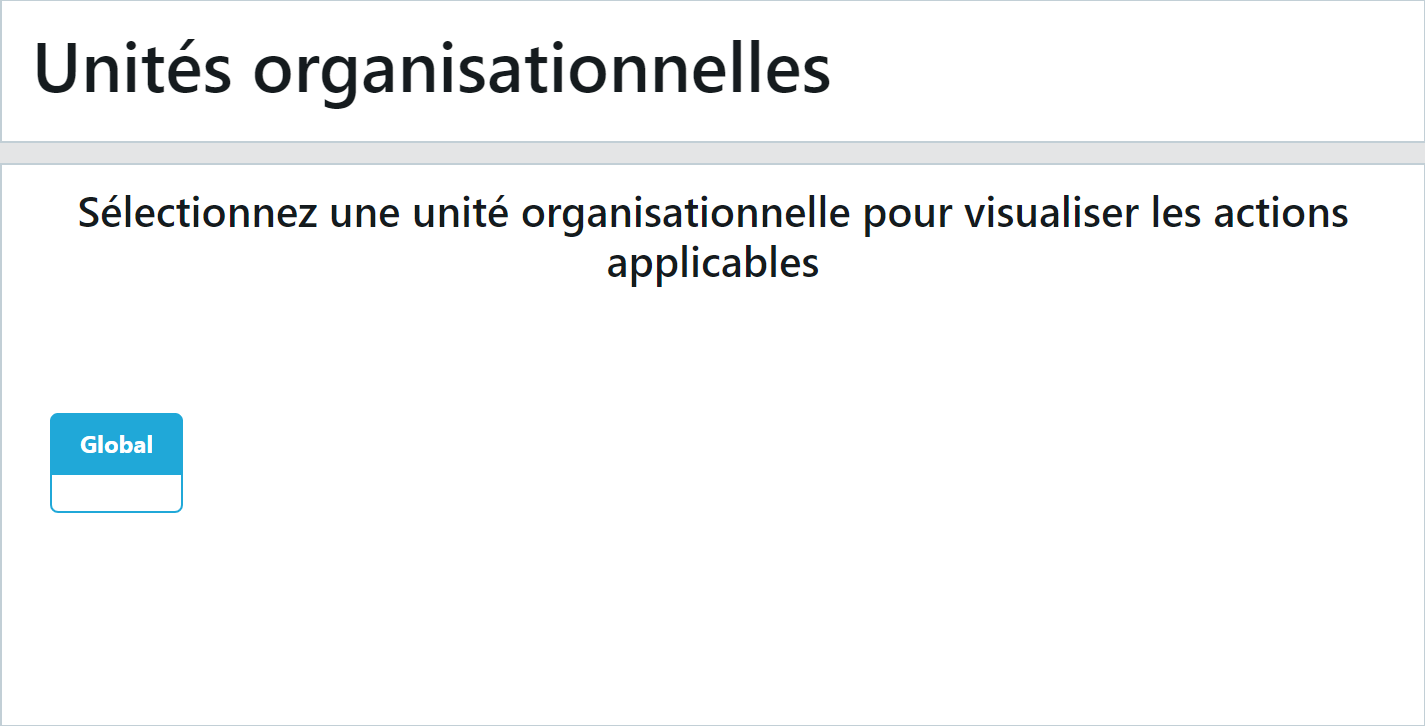
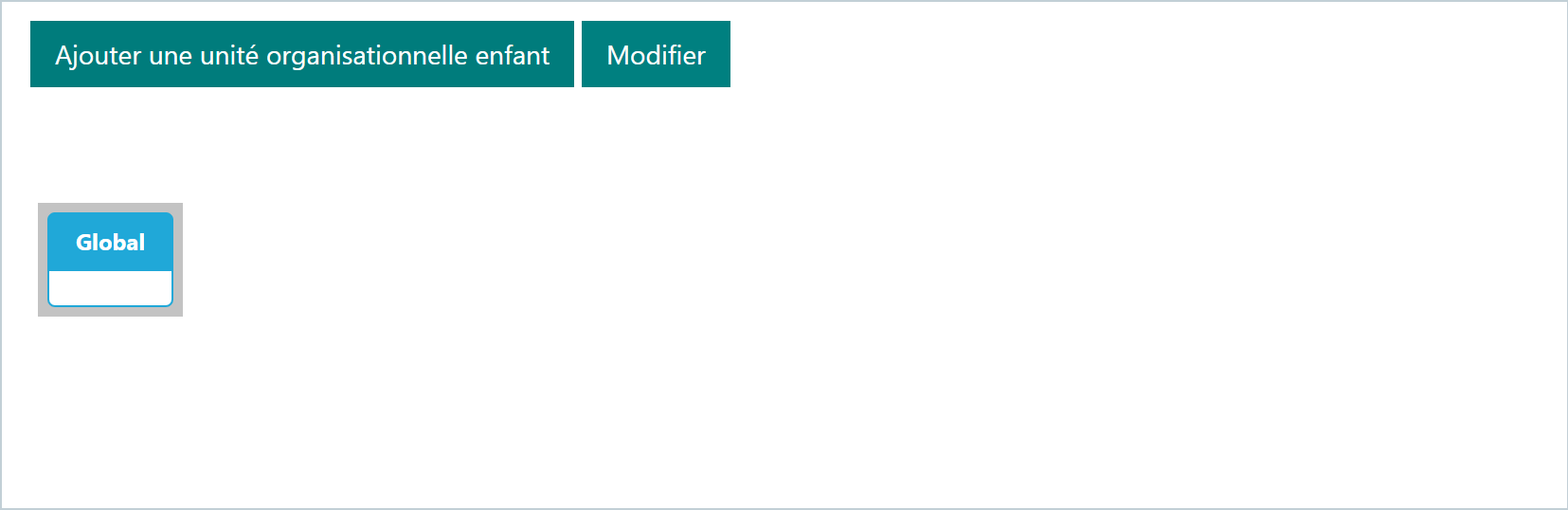
- Click on Global to access the "Add a child organisational unit" button:
- This default name can be personalised using the "Edit" button
- This default name can be personalised using the "Edit" button
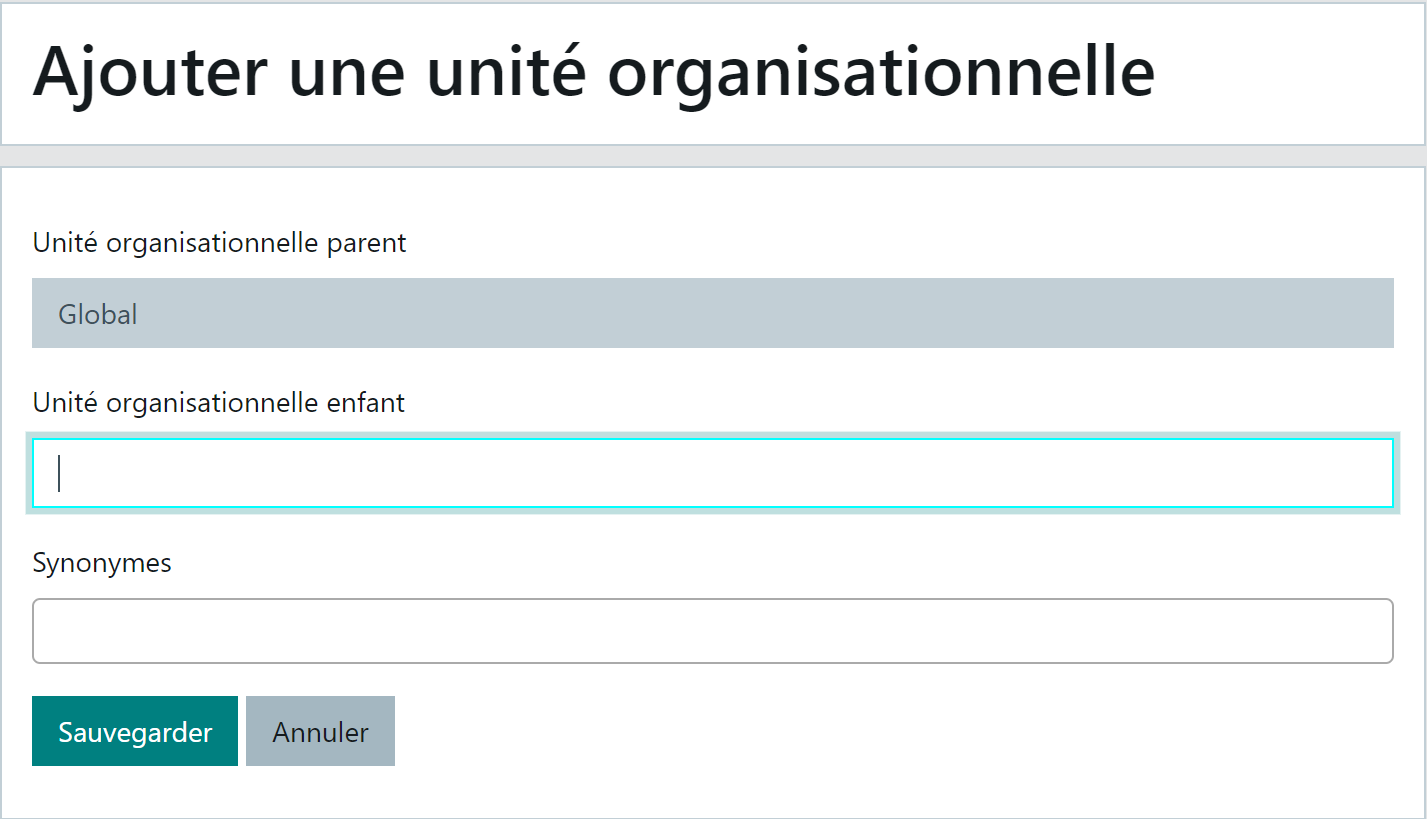
- Specify the name of the child OU to add and "Save":
Example: Regional Directorate A
-
A short name can be entered in the "Synonym" area. Example: RD A Refer to the section Querying another OU's bot for more details.
-
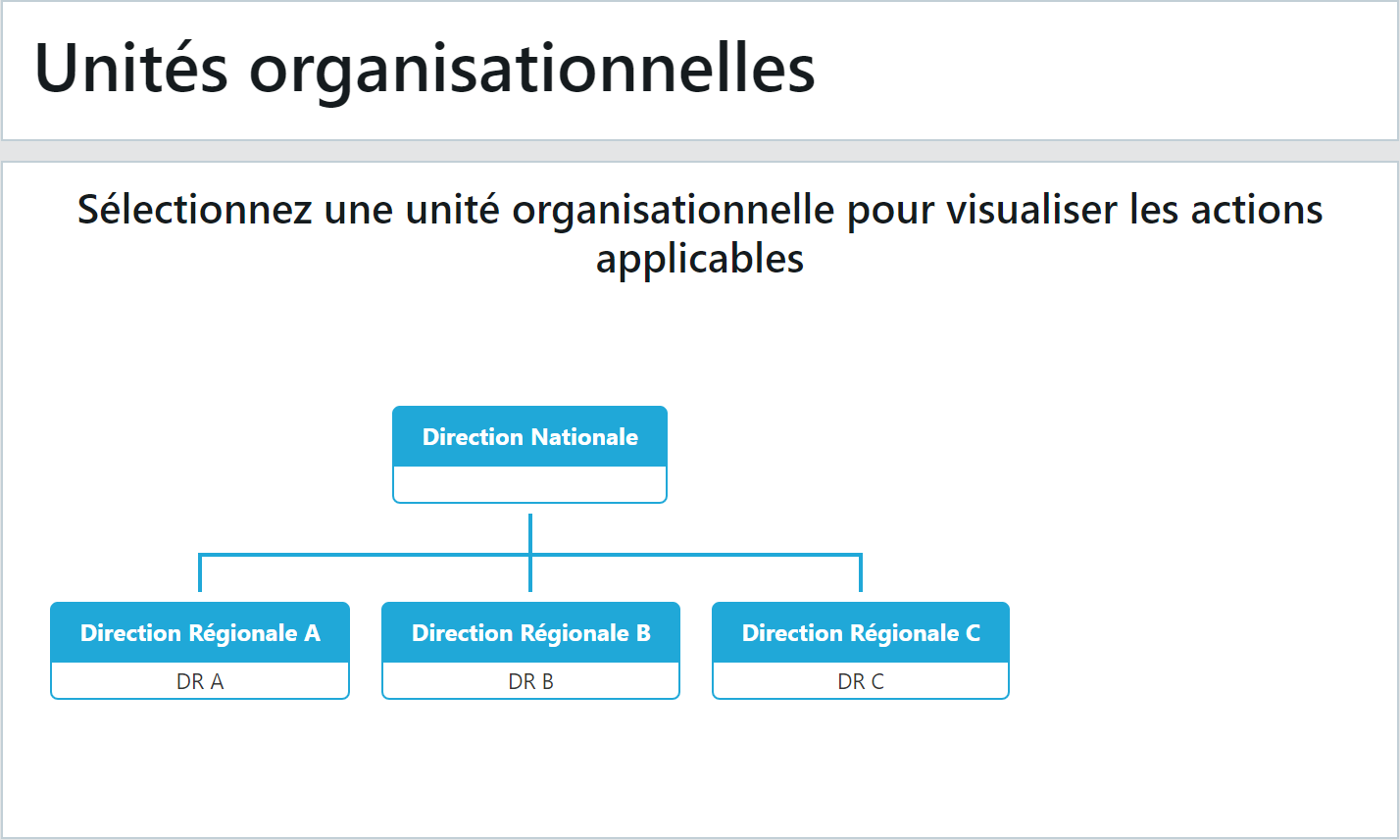
Repeat the action as many times as necessary to arrive at the final structure
Example:
Creating roles per level
User profiles
Each level of the hierarchy will include different user profiles:
-
a botmaster, administrator of the knowledge base and chatbot skill settings. They also have access to the chatbot. Depending on their hierarchical level, the botmaster will not have the same authorisations for back-office functions. You must therefore create as many "botmaster" roles as there are levels in the structure. Example: National Botmaster (level N) and Regional Botmaster (level N-1)
-
collaborators, limited to using the chatbot only.
Descriptive diagram of user profiles in a hierarchical OU structure:
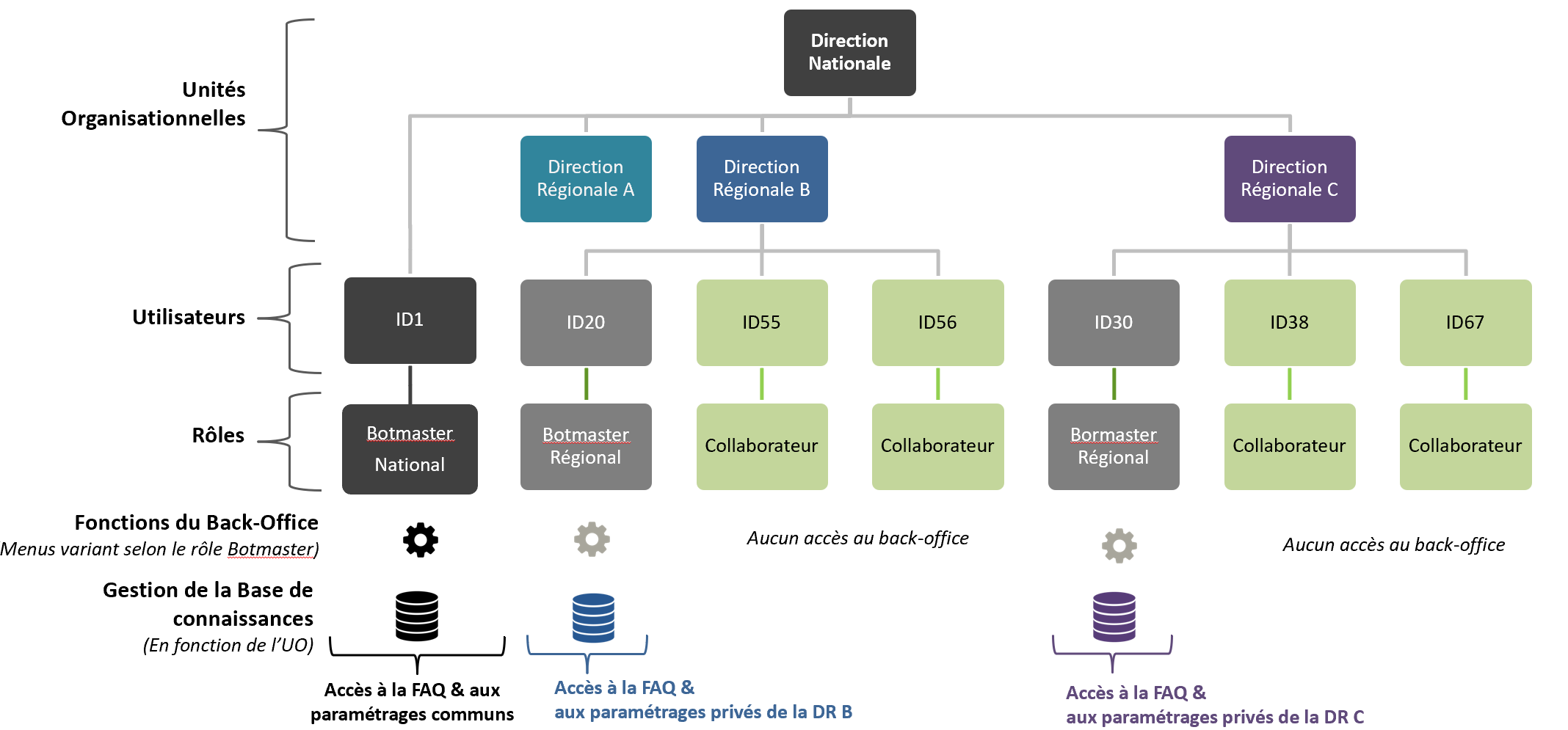
Each of these user profiles must be defined in the "Security > Roles" function.
Botmaster rights according to level
Listed below are the features that must be authorised to the botmaster according to their level in the hierarchical OU structure:
| Menu | Back-office feature (1) | Rights of the National Botmaster | Rights of the Regional Botmaster |
|---|---|---|---|
| Chatbot > Welcome | View & Update parameters | Yes | No (2) |
| Chatbot > Conversation | View Add / Modify / Delete | Yes Yes | Yes No |
| Chatbot > Satisfaction | Update scenarios and messages Satisfaction measurement per OU | Yes Yes | No Yes |
| Chatbot > Misunderstanding | Modify message per status Configure opening hours | Yes Yes | Yes No |
| Knowledge > Smart FAQ | Add a common Smart FAQ Edit a common Smart FAQ Delete a common Smart FAQ Disable a common Smart FAQ | Yes Yes Yes Not applicable | No Yes (3) No Yes |
| Knowledge > Smart FAQ | Add a specific Smart FAQ Edit a specific Smart FAQ Delete a specific Smart FAQ Move a specific Smart FAQ to the common base | Yes Yes Yes Yes | Yes Yes Yes No |
| Knowledge > Dictionaries | View Add / Modify / Delete | Yes Yes | Yes No (4) |
| History > Conversations | View their OU's conversations View level N-1 OU conversations | Yes Yes | Yes No |
| History > Comments | View their OU's comments View level N-1 OU comments | Yes Yes | Yes No |
| Dashboards | View their OU's statistics View level N-1 OU statistics Consolidation of child OU data | Yes Yes Yes | Yes Yes No |
(1) For the exact names of the authorisations to tick in the "Security > Roles" function, refer to the Rights section.
(2) The bot's welcome screen is common to all OUs and administered by level N. The level N-1 botmaster does not see it in their menu.
(3) The level N-1 botmaster can edit a so-called "common" Smart FAQ (created by level N) but only on the following elements: answer text, URL link and linked files.
These modifications only apply to their OU. Other OUs have the common Smart FAQ elements, unless they have made their own modifications.
(4) The dictionary remains common to all OUs and is therefore only administered at level N.
Linking users to a role and an OU
Go to the "Security > Users" function.
Add a user or, if they already exist, access their profile via the "Edit" button:
- enter the username (their identifier) and their email,
- enter their last name and first name,
- link them to a role,
- and select their organisational unit.
Example:
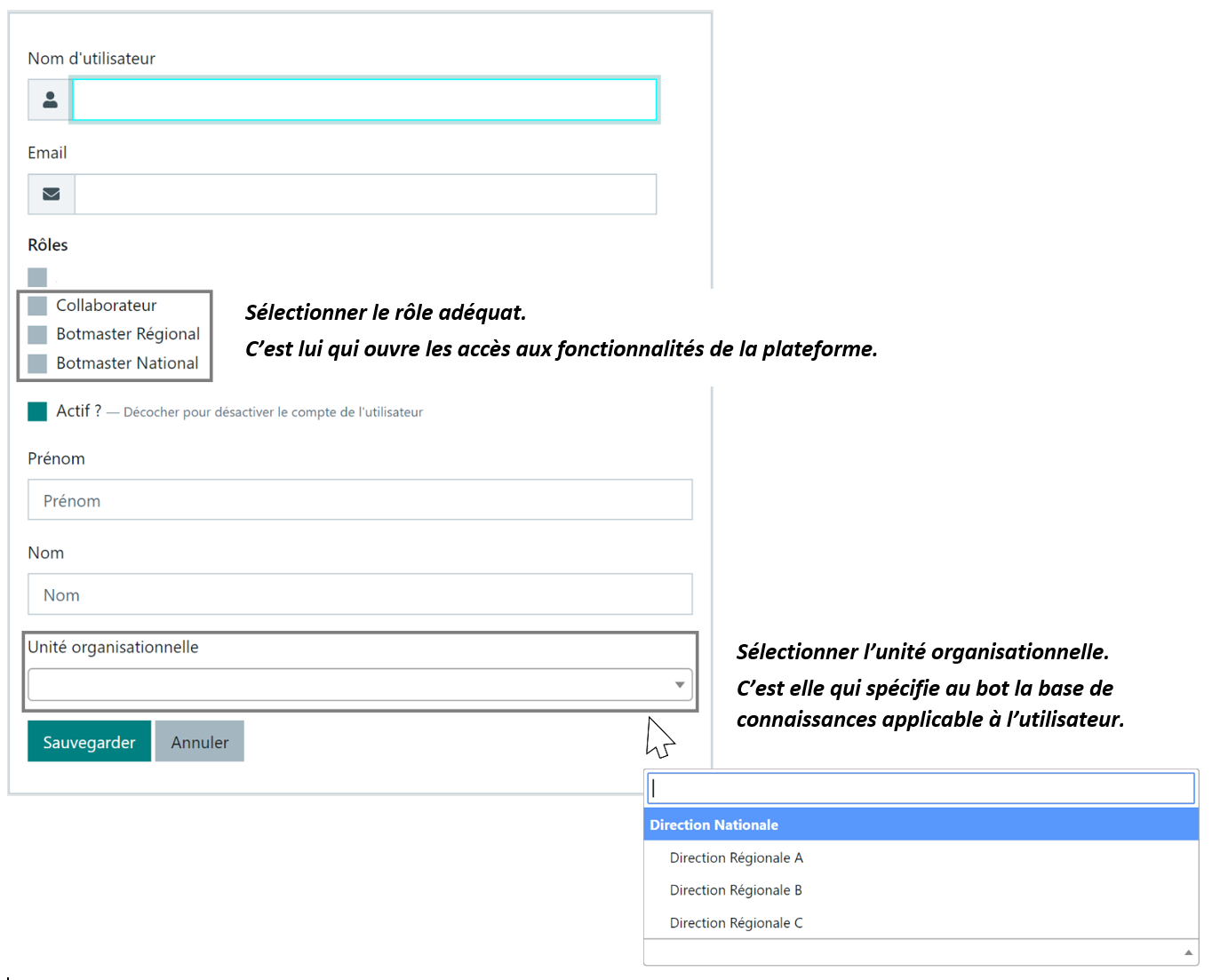
- Assign the "National Botmaster" role if the user is responsible for the Smart FAQ and settings at level N. In this case, they must be linked to the "National Directorate" OU.
- Assign the "Regional Botmaster" role if the user is responsible for the Smart FAQ and settings at level N-1. In this case, they will be linked to one of the "Regional Directorate A", "B" or "C" OUs.
- Assign the "Collaborator" role if the user only has access to the chatbot.