Measuring user satisfaction
The "Satisfaction" skill allows you to implement a user satisfaction measurement in order to analyse the quality of the digital assistant's responses and thus improve them.
Function description
Satisfaction is measured by Yes or No after each business response or according to a sampling.
If the user is not satisfied, they can leave a comment that can then be analysed in the back-office, in the History > Comments function, and followed up with corrective actions on the Smart FAQ.
Satisfaction settings are configured in the "Chatbot > Satisfaction" function of the back-office:
- definition of the satisfaction scenario,
- definition of measurement frequency (every X questions or according to sampling),
- whether or not to apply an avatar animation.
NOTE: The "Satisfaction" skill is enabled upon installation of Retorik Studio, with standard settings but with the frequency initialised to zero. Satisfaction is therefore not triggered when you query the digital assistant.
- You must enter a value greater than 1 to trigger satisfaction measurement. Refer to the section Frequency definition.
Scenario definition
The default satisfaction scenario implemented is as follows:
"Blocking satisfaction" option
By default, satisfaction is set to "non-blocking":
- the user can choose not to answer "yes" or "no" and immediately ask another question.
- The digital assistant will respond to them.
It is possible to force the user to respond to the satisfaction question by ticking the checkbox below:

and entering a follow-up text.
Our suggestion:

If the user asks another question without responding to the satisfaction prompt, the digital assistant will follow up with this message combined with the satisfaction question, for example "You must answer the satisfaction question before asking another. Was this answer satisfactory?" followed by the 2 Yes and No buttons.
"Comment input" option
When the user answers "No" to the satisfaction question, it is recommended to have them enter a comment in order to understand their dissatisfaction and improve the digital assistant's responses.
To enable comment input, tick the checkbox below:

and fill in the 2 associated texts.
Our suggestions:
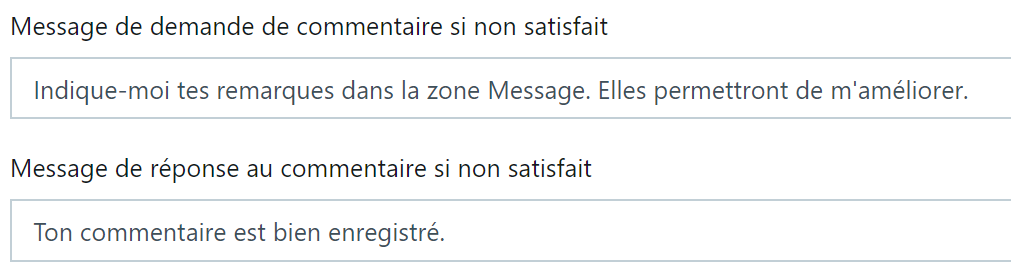
NOTE: If "comment input" is enabled for dissatisfaction, the user will need to enter their comment in the Message area. The digital assistant is waiting for a comment. If the user enters another question too quickly, it will be treated as a comment. The digital assistant will then finish its "no" scenario and will not respond to the user's question.
Defining the frequency
The measurement can be triggered:
-
According to a number of questions asked The counter is incremented by 1 for each business question or definition asked during the current conversation. The digital assistant triggers the satisfaction question once the defined value is reached, then resets the counter to zero.
-
According to a counter maintained by theme A counter is calculated for each category associated with the business responses of the digital assistant in the current conversation. The digital assistant triggers the satisfaction question as soon as the defined value for a category is reached, then resets the counter to zero for that category.
General conversation messages such as "hello", "goodbye", "how are you?", "thank you", etc. are not counted in this counter.
The counter is reset if the digital assistant is restarted (web page refresh or user reconnection).
This frequency is defined for each organisational unit (OU) in place. If no OU hierarchy is in place, your user account is automatically linked to the "Global" OU, created by default, as in the examples below. Refer to the Organisational Units function for more details.
Examples of frequency definition:
To trigger satisfaction on every question, regardless of the associated category, enter value 1 in the "Number of questions before satisfaction" column:

To trigger satisfaction every 2 or more questions, regardless of the associated category, enter a value greater than 1 in the "Number of questions before satisfaction" column:

To trigger satisfaction every 2 questions asked within the same category and in the same conversation, enter as shown in the example below:
- a value greater than 1 in the "Number of questions before satisfaction" column
- tick the "Calculate by theme" checkbox

Avatar animation
The avatar integrated into the conversation window design can be animated on the digital assistant's response message when the user answers "Yes" or "No" to the satisfaction measurement.