Misunderstanding
It is important not to leave the user without a response if the digital assistant cannot answer their request.
The "Misunderstanding" skill allows you to manage, in the event of a non-response from the digital assistant, an exit scenario by providing the user with an alternative solution: a redirect to a support service or a responsible person, for example.
This redirect currently takes the form of a customisable message in Retorik Studio, which can vary depending on your reception desk's opening and closing hours.
These settings are accessible in the "Chatbot > Misunderstanding" and "Chatbot > Settings > Opening Hours" functions of Retorik Studio.
Default misunderstanding message
Retorik Studio is delivered with 2 statuses — "Open" (set as default) and "Closed" — but without a precise definition of opening hours.
The message is the same by default for both statuses:
"Sorry, I did not understand your request. Could you please rephrase?"
When the digital assistant cannot find any answer to provide to the user, it will display this message regardless of the time.
The text of this default message can be customised in the "Chatbot > Misunderstanding" function, by modifying it for the status defined as default.
Misunderstanding message by opening hours
Defining opening hours
To vary the misunderstanding message according to the availability of your reception desk, you must first declare its opening hours for each day of the week in the "Chatbot > Settings > Opening Hours" function.
Steps to follow:
- Choose a default status
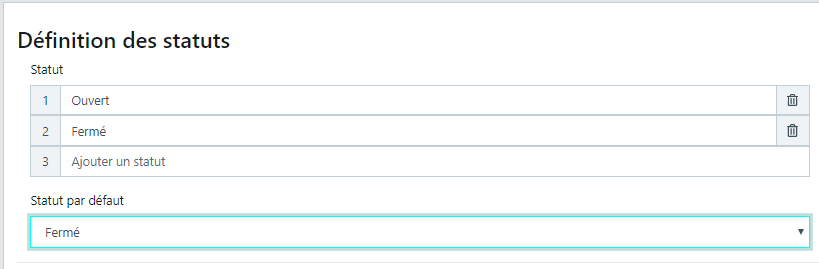
It is generally advisable to set the default status to "Closed", which covers a larger portion of the day
- Declare for each day of the week all the necessary time slots:
-
Click on the grey area of the day
-
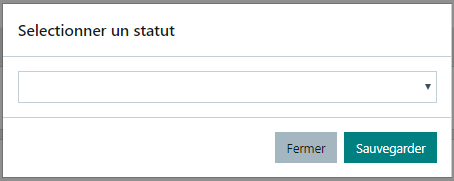
A window appears. Select the status of the time slot to create, then Save:
- If the default status was set to "Closed" in step 2, select the "Open" status here
-
A rectangle is drawn at the click location with the status name inside:

- To move it: click on it, hold and drag when the pictogram transforms into a star
- To resize it: click on it and place your mouse on the right or left edge of the rectangle, then stretch when the cursor becomes "<-->"
- To delete it: click the red cross that appears when you click on it
Example of creation:

- Do not forget to save the opening hours grid by clicking the Save button at the bottom of the page.
Defining a message per status
After defining the default status and the opening hours, go to the "Chatbot > Misunderstanding" function to modify the message per status (1 tab to modify for each status).
A simplified text editor allows you to format each message:
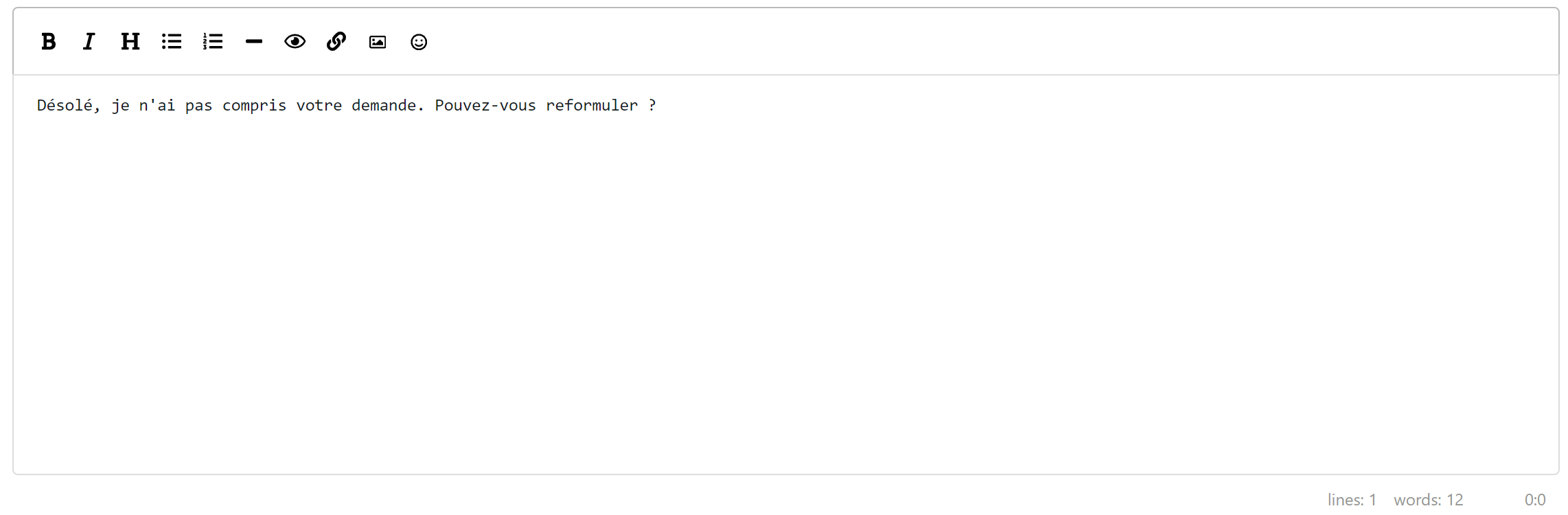
- Refer to the section Knowledge Base > Answer text editor for the meaning and use of the tools in this editor.
Modify the message for each status and Save at the bottom of the page.