Filtering Tourist Points of Interest
Filter types
Filter types are implemented by default when the "Hospitality" feature is activated. They are accessible from the menu at "Contents > Content items" in the "Content type" filter, and there are 3 of them:
| Filter type | Description | Content field type |
|---|---|---|
| List filter: boolean | Filters content items on a true or false value | Boolean Field |
| List filter: date | Filters content items on a date value | Date Time Field |
| List filter: text | Filters content items on a text value | Text Field / Multi Text Field / Numeric Field (to be confirmed) |
Standard filters
Default list
When the "Hospitality" feature is activated, a set of filters linked to the 6 standard content types is available. They are visible in the menu at "Hospitality > Settings > List filters" and correspond to the top-of-page filters and bottom-of-page search suggestions found by default in the 6 POI lists (Where to eat, Where to sleep, Things to do, What to see, etc.).
| No. | Filter title | POI concerned | Description |
|---|---|---|---|
| 1 | List Filter on FoodEstablishment: Cuisine types | Restaurants | Selection of restaurants from 4 cuisine types, 3 of which are offered as search suggestions |
| 2 | List Filter on FoodEstablishment: Recommendations | Restaurants | Selection of restaurants marked as "staff picks" |
| 3 | List Filter on LodgingBusiness: Accommodation type | Accommodation | Selection of accommodation from 7 types, 4 of which are offered as search suggestions |
| 4 | List Filter on LodgingBusiness: Recommendations | Accommodation | Selection of accommodation marked as "staff picks" |
| 5 | List Filter on TouristDestination: Cultural heritage | Places to visit | Selection of places from 9 cultural heritage categories |
| 6 | List Filter on TouristDestination: Crafts | Places to visit | Selection of places from 27 craft-related categories |
| 7 | List Filter on TouristDestination: Recommendations | Places to visit | Selection of places marked as "staff picks" |
| 8 | List Filter on TouristAttraction: Activities | Things to do | Selection of activities from 40 categories (Climbing, Swimming, Fishing, Tennis, Sailing, etc.) |
| 9 | List Filter on TouristAttraction: Tourist itinerary | Things to do | Selection of activities from 9 tourist itinerary categories (motorbike, trail, mountain biking, horse riding, skiing, etc.) |
| 10 | List Filter on TouristAttraction: Recommendations | Things to do | Selection of activities marked as "staff picks" |
| 11 | List Filter on Event: Date | Events | Filter 1: filter events taking place on the selected date |
| 12 | List Filter on Event: Event type | Events | Filter 2: filter events by type (workshop or animation, concert, sporting event, hike/walk, etc.) |
| 13 | List Filter on Event: Recommendations | Events | Selection of events marked as "staff picks" |
| 14 | List Filter on Service: Shops and services | Shops & Services | Selection of shops from 15 categories, the first 5 offered as search suggestions |
| 15 | List Filter on Service: Recommendations | Shops & Services | Selection of shops/services marked as "staff picks" |
| 16 | List Filter on Product: Category | Local products | Selection of products from 12 categories, the first 5 offered as search suggestions |
| 17 | List Filter on Product: Recommendations | Local products | Selection of local products marked as "staff picks" |
Warning about modifying a standard filter
WARNING! These filters must not be modified or deleted under any circumstances. Doing so could cause issues or data loss during a migration to a later version of Retorik.
If you need to customise one of these filters, duplicate it and customise the copy. You can freely create new filters using a standard filter as a template.
Creating a custom filter
To create a filter:
- Go to the menu at "Hospitality > Settings > List filters" or the broader "Contents > Content items" function.
- Click the New button and select a filter type from the 3 available types.
Creating a "Text" filter
Fields to fill in
Creating a text filter presents around ten fields to fill in, most of which are also found in the other 2 filter types. Fields shared by all three filters will only be explained in this chapter.
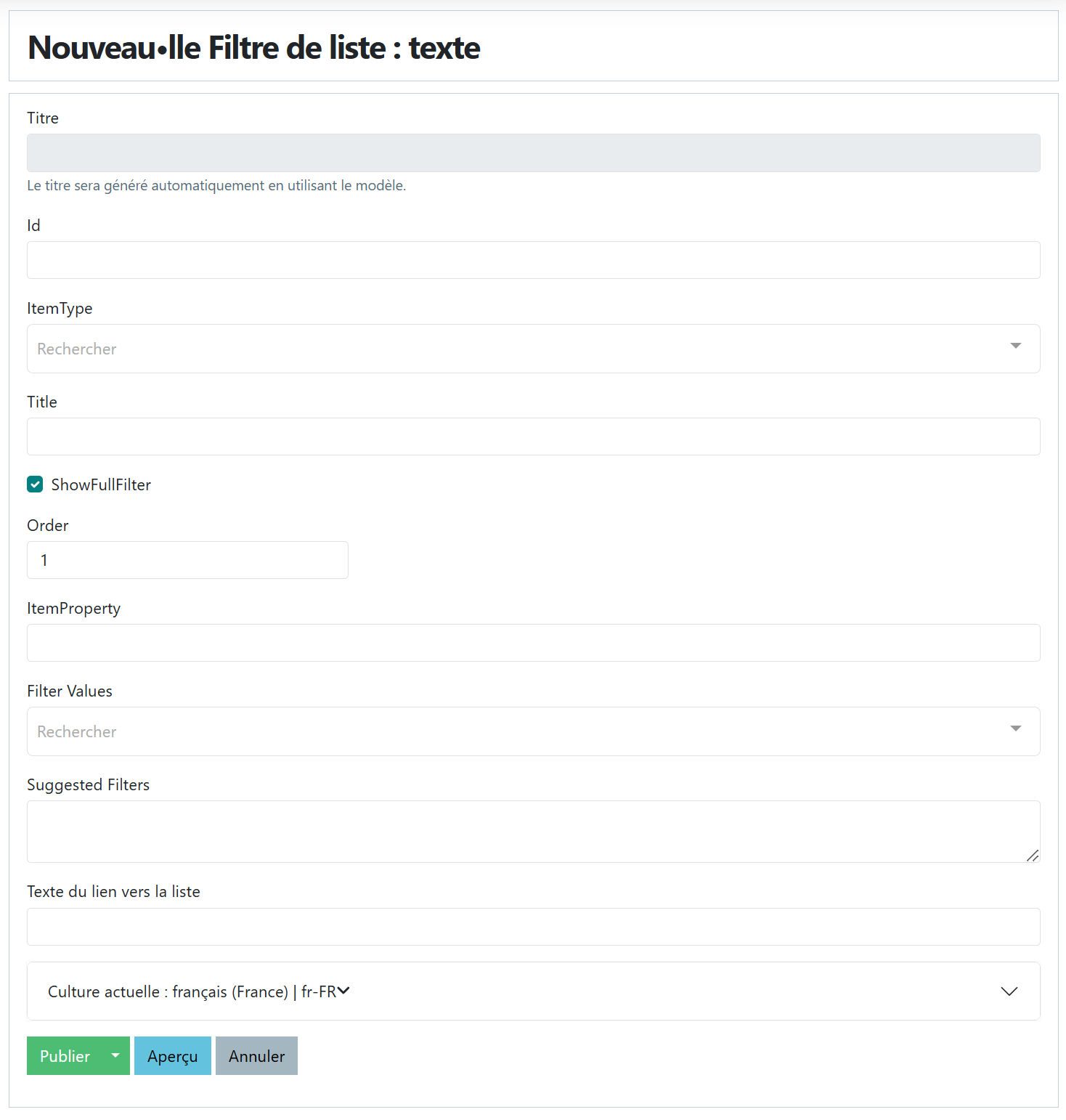
Field descriptions:
-
Title: automatically filled with "List Filter on" + ItemType + ": " + Title.
-
Id: enter a unique identifier that is meaningful to you, as other features will require you to select a filter and this Id will be displayed (for example, when creating a click-to-action showing a personalised recommendations carousel).
- Recommendation: build your Id from the content type and the filtered field name, removing spaces and separating with a dot. Example: FoodEstablishment.TypeOfCuisine.
-
ItemType: select the content type from the existing types in the dropdown list.
-
Title: enter the filter name that will be shown to the user at the top of the POI list.
-
ShowFullFilter: check this box if you want this filter to appear both at the top of the list page and at the bottom as a search suggestion.
-
Order: indicate the display order of the filter in the top-of-page filter area of the POI list.
-
ItemProperty: enter the technical name of the field defined in the content type or a content piece included in that type. A filter can only contain one filter field. You can find the technical name of the field in the content type by going to "Content > Content definition > Content types":
- Click the Edit button next to the relevant content type (Food Establishment, for example),
- Scroll down to the "Fields" heading on the page,
- Click Edit on the relevant field. If you cannot find it, it may be in one of the content pieces.
- In that case, go to the "Content pieces" function and repeat the operation on the piece's field.
- The technical name is in the second position (name without spaces, unlike the display name).
-
Filter Values: enter the series of values on which the user can filter their content list. These will be presented as a checklist.
-
Suggested Filters: enter line by line the different values you want to filter on the ItemProperty field to highlight them as search suggestions at the bottom of the list. Suggestions appear in the order they are entered. A custom label can be specified for each suggestion. The number of items matching the selection criterion will be displayed to the right of the suggestion label. Example search suggestions for the "TouristAttraction" content type and the "Categories" field placed in the "Thing" piece:
- Pedestrian;1;Our walking trails
- Mountain biking;2;Discover our mountain bike trails
-
Link text to the list: enter the title of the link on the 4th carousel card here, if you use this filter in a personalised recommendation. See the Content recommendations chapter.
-
Current culture: by default, this field is initialised with the language set as default in "Configuration > Settings > Localisation > Culture".
- If you have multiple cultures defined, the same filter must exist for each language. Once your filter is ready in the default language, return to edit it, choose another language, then publish. Your filter should appear in the list in the default language and then in each additional language.
Text filter example
Creating a "Boolean" filter
Fields to fill in
Creating a boolean content filter presents the same fields as the Text filter, except for the "Selector Label" field which replaces "Filter Values":
- In the "Selector Label" field, enter the title displayed to the user in the dropdown filter at the top of the page. Example: "Our office's staff picks".
Boolean filter example
Creating a "Date" filter
Fields to fill in
Creating a date content filter has fewer fields than the Text and Boolean types, but the 7 remaining fields are also used by those 2 types. Refer to the Creating a Text filter chapter for their descriptions.
Date filter example
Creating a random recommendation
Description of a random recommendation
A random recommendation allows you to make a complete or partial selection of content items and randomly propose 3 of them to the user in a media card carousel. Example:
- Recommend 3 restaurants from "Pizzeria" type restaurants in Reims: one content type (Restaurants) and 2 filter fields (Category and City).
- Recommend 3 restaurants or accommodation options in Reims: 2 content types (Restaurants and Accommodation) and 1 filter field per type (City).
A random recommendation can be configured on the welcome screen by creating a click-to-action based on the "A random recommendations carousel" information type.
A random recommendation is created via "Hospitality > Settings > Random recommendations" by specifying:
- An identifier
- A response text: e.g. "Here are our restaurant recommendations" or "Discover these restaurants!"
- A text if no results match the selection. Example: "I have no restaurants to show you."
- A text for the next recommendations button: this is the link on the 4th card of the recommendations carousel. Default is "See other recommendations" but this text can be changed.
- The following section corresponds to the configuration of the complete or partial content selection.
- The current culture.
Configuring a complete selection
To configure a complete selection from one or more content types, simply select the different content types in the dropdown labelled "Content type to suggest" and leave the following fields empty before publishing the random recommendation.
Configuring a partial selection
For a partial content selection, use custom filters created beforehand in the "Hospitality > Settings > List filters" menu and compose your filter selection by specifying the values for each filter and using OR or AND operators.
Example:
- We will create a random recommendation that proposes 3 recommendations from restaurants and accommodation located in Reims.
Steps to follow:
- Create filter A on the "Restaurants" content type with a filter on the "City" field.
- Create filter B on the "Accommodation" content type with a filter on the "City" field.
- Create a random recommendation inserting filters A and B with:
- a filter value of "Reims" for each filter,
- the OR operator to include all results from both filters.
- The recommendation will randomly propose 3 items from this combined set.