Dictionaries
Role of dictionaries
The "Knowledge > Dictionaries" function allows you to gather within one or more dictionaries:
-
word synonyms to increase the digital assistant's comprehension.
-
definitions to enrich the assistant's knowledge base:
- These definitions supplement the question-and-answer base in the form of questions such as "What is the definition of".
- The user can use other phrasings: "What is a(n)", "What does ... mean", "What does ... signify", etc.
- These synonymous phrasings are delivered at the installation of Retorik Studio in a current dictionary.
A dictionary entry (word, acronym or phrase) can be associated with a definition, a synonym, or both.
Examples:
| Word/Phrase | Synonyms | Definition |
|---|---|---|
| child | son, daughter, baby, boy, girl, newborn, kid, etc. | |
| bank card | debit card, credit card, payment card | |
| chatbot | bot, chat bot | A chatbot is a software robot capable of conversing with an individual or consumer through an automated conversation service, largely conducted in natural language. |
Filling rules:
-
The "Word/Phrase" column should contain the terms used in the questions of the knowledge base.
-
Synonyms group all terms that a user might use to unambiguously name this word/phrase.
- For compound words with hyphens (newly-born) or phrases with apostrophes (I'm entitled to), there is no need to include in the "Synonyms" column the various spellings with or without hyphens/apostrophes. The AI algorithms do not take these characters into account when processing synonyms.
- Note: the system replaces each synonym found in a question in the base, or in the user's question, with the associated word ("Word/Phrase" column). This replacement is made on the exact expression. You must therefore include in the "Synonyms" column all singular/plural variants of each synonym.
- For compound words with hyphens (newly-born) or phrases with apostrophes (I'm entitled to), there is no need to include in the "Synonyms" column the various spellings with or without hyphens/apostrophes. The AI algorithms do not take these characters into account when processing synonyms.
-
Retorik Studio is equipped with a spell checker that corrects typing errors in messages sent by users. However, this is specifically in French and does not include all technical terms and acronyms specific to your organisation. These should therefore be inserted in a dictionary so that the spell checker does not alter their spelling and thus generate routing errors or misunderstandings by the digital assistant.
- These entries may have no definition or synonyms.
Word weights
The recognition engine calculates the importance of words (=weight) according to a precise algorithm and determines for each question a confidence score (final score) which directs it:
- either to a direct answer if the score of a question is high (threshold configured in Retorik Studio)
- or to a list of proposed questions if several questions are below this threshold.
It is possible, through the dictionary, to influence the weight of certain words to vary their importance in the final score. For example, when a theme is not widely addressed in the knowledge base questions, you can increase its weight. Conversely, if a word or phrase is frequently used in questions but has no real added value, such as "Can I" or "how", you can reduce its weight.
A word is created in the dictionary by default with standard weight but you can assign it the following values:
| Weight | Value |
|---|---|
| Standard | 1 |
| Ignore | 0 |
| Low | 0.5 |
| High | 1.6 |
| Maximum | 2 |
Example of creation:
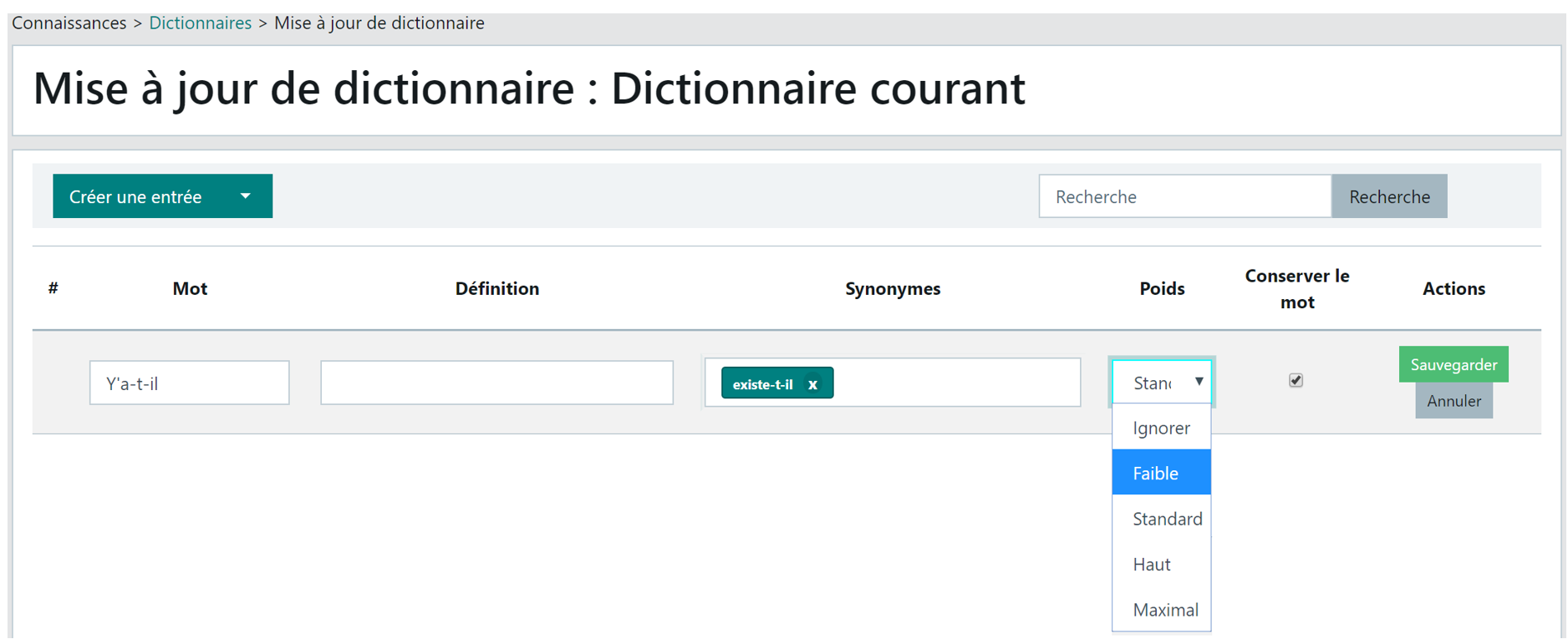
"Keep form" option
The "Keep form" option is not ticked when creating a dictionary entry. It only applies to the "Word/Phrase" column, the final term in the question after synonym processing.
-
If "Keep form" is not ticked: The recognition engine works on the word root to find a match in the knowledge base questions. With this option, the words "book" and "booklet" are treated as identical words. Similarly, the words "child" and "children".
-
If "Keep form" is ticked: The recognition engine will only find a match for the word if it finds the exact expression in the knowledge base questions. The words "child" and "children" are then two different words. This option therefore requires including in the synonyms all singular/plural variants of the word/phrase.
IMPORTANT The choice of one or the other option must be carefully evaluated as it can lead to undesirable effects:
- Some words have the same root but a different meaning (withdrawal and withdrawal period, for example).
- Moreover, when a "word/phrase" contains multiple words, if the "Keep form" option is not ticked, the search engine works independently on each word; this can generate routing errors in the digital assistant's responses.
Ticking the "Keep word" box allows better control over the routing of digital assistant responses, but it requires placing in the synonyms column all possible variants of words/phrases and synonyms, including singular/plural forms.
Import/Export functions
Importing a dictionary
-
Designing your file
To create a dictionary supplementary to the current dictionary delivered as standard, you can prepare an Excel file and import it. The file must contain the following 5 columns:
| Word/Phrase | Definition | Synonyms | Weight | Keep form |
|---|
Filling rules:
- The 1st row of the file must contain the column headers, words must start from the second row,
- Column names must be respected,
- The order of columns may differ from the template,
The Excel file must be saved in CSV format (separator: semicolon) to be imported into the back-office.
-
Importing a dictionary
To import a dictionary in CSV format, click the button  then indicate its name in the popup that appears (example: Specific dictionary) and confirm with the OK button.
The new dictionary appears in the list with 0 words:

Click the Edit button
Click the arrow to the right of the "Create an entry" button and select the Import function from the menu:
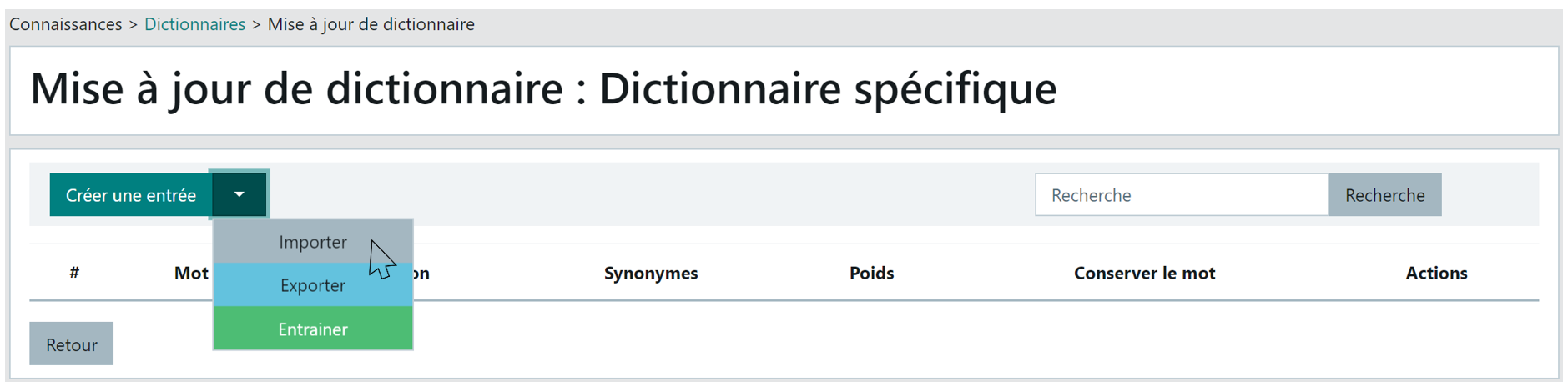
A file selection window, standard to your PC operating system, is displayed:
-
Select the CSV file
-
Click Open
-
Processing is in progress, the web tab shows a spinner
-
Processing is complete when the web page refreshes and displays the import summary:
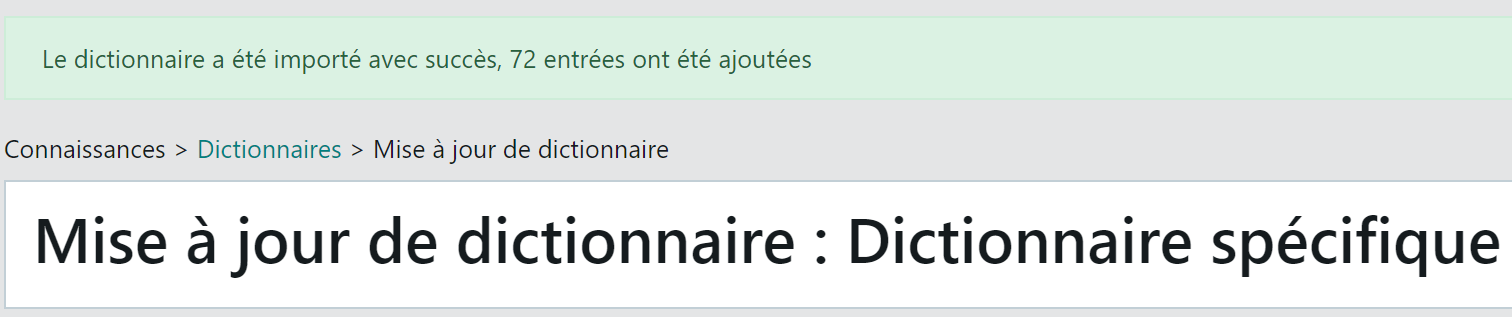
-
IMPORTANT: after this processing, do not forget to retrain the digital assistant so that it takes these new data into account.
Exporting a dictionary
It is possible to export the contents of a dictionary to share it internally during its design/development in project mode, or to reimport it on another K2 platform.
To export a dictionary:
- Go to the "Knowledge > Dictionaries" function
- Enter edit mode on the desired dictionary
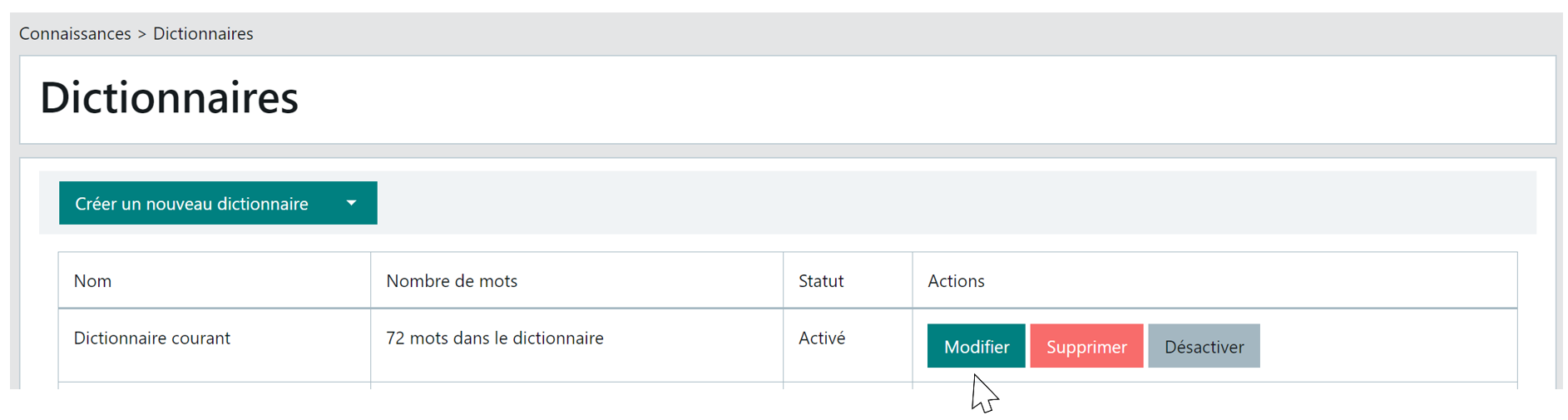
- Click the arrow to the right of the "Create an entry" button and choose "Export"
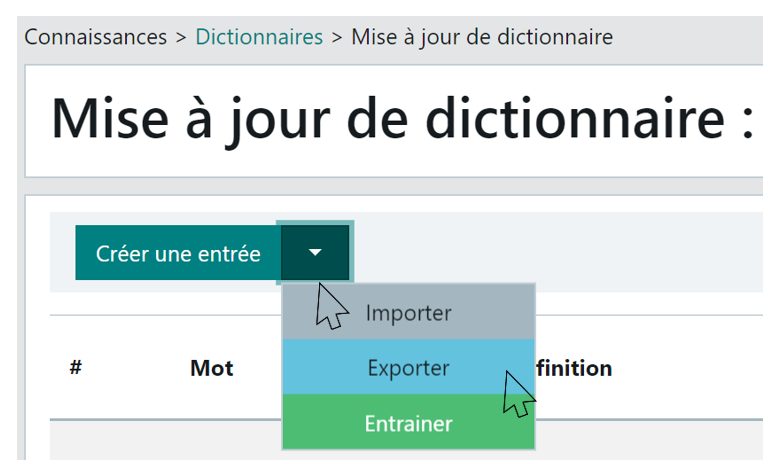
The dictionary is exported in CSV format (separator: semicolon) under the name "Export_Dictionary_Dictionary_name" in your default download folder or in the folder you specified during the download.