Knowledge Base
The "Knowledge > Knowledge Base" skill in Retorik Studio allows you to reference and update all the question-and-answer entries that make up the digital assistant's business knowledge.
Knowledge entry details
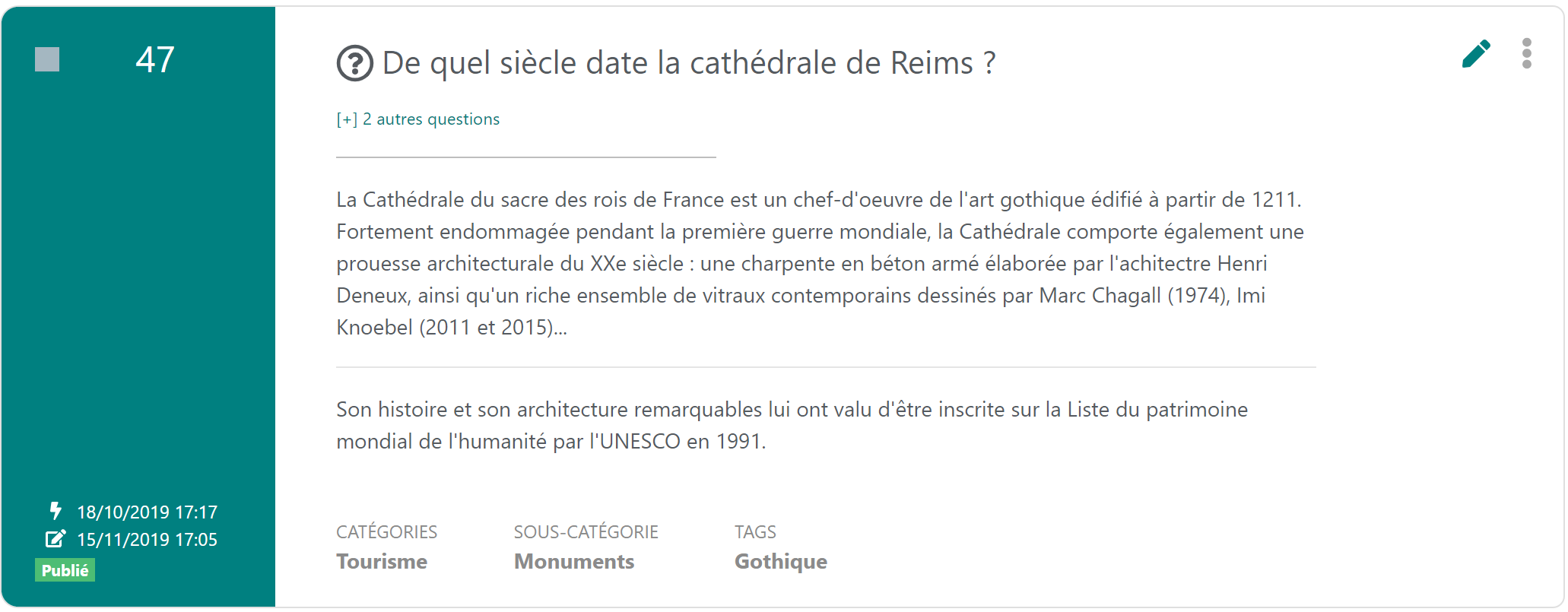
A knowledge entry is identified by a number and can group the following information:
- one or more questions (Required)
- an answer (Required)
- Divided into 2 output channels: Text (input area open by default) and Voice (accessed by clicking the green tab)
- If the Voice answer is identical to the Text answer, leave it empty.
- an answer supplement (Optional)
- Also divided into 2 output channels: Text and Voice
- If this field is filled in, your digital assistant will invite the user to click Yes or No to the question "A supplement is available, would you like to know more?". The supplement will be displayed if the user answers "Yes".
- The text of this question is customisable in Retorik Studio, under the "Knowledge > Settings > Answer Settings" menu.
- a source (Optional)
- You can indicate the URLs of the websites from which you extracted your information. The source is never visible to the user. It is data reserved for the administrator collaborators of the knowledge base.
- a theme broken down into category and sub-category (Optional)
- This concept allows knowledge entries to be classified and filtered in the navigation interface.
- It is also used to count the number of questions asked by theme. Refer to the Dashboards > SmartFAQ function.
- one or more tags (Optional)
- A tag can be likened to a keyword associated with the knowledge entry. It is a concept independent of the category/sub-category (theme) concept. The tag provides a more cross-cutting notion and is taken into account, unlike the theme, in the digital assistant's understanding.
- However, it is weighted with a much lower value than a word in the question. But it can help the digital assistant to prioritise one question over another and thus reach a direct answer, or suggest a list of questions in a more relevant order.
- A count of questions by tags is also available in the dashboards.
- Tag usage should remain relevant: limiting the number of tags per knowledge entry, using tags different from the category/sub-categories of the knowledge entry, and choosing a keyword not present in the question will help with understanding.
- A tag can be likened to a keyword associated with the knowledge entry. It is a concept independent of the category/sub-category (theme) concept. The tag provides a more cross-cutting notion and is taken into account, unlike the theme, in the digital assistant's understanding.
- a URL link to complement the answer by redirecting the user to additional documentation already available on a website (Optional)
- one or more linked files that will be stored in the Retorik Studio database and offered to the user after the answer, via a download link (Optional)
- a status:
- upon creation, a knowledge entry takes the "Published" status, meaning it is available to end users.
- it can be reassigned "Draft" status if you do not want it to be immediately available to the public. See the Unpublish function.
- other statuses are managed if a knowledge validation workflow is in place. Refer to the Workflow section
All actions performed on a knowledge entry are logged and visible:
-
either in its green panel on the left of the screen:
- creation date
- date of last modification
- date of status change
-
or in the "View history" function available in the knowledge entry's contextual menu, on the right of the screen:
-
date-time, user and role are tracked here for each action.

-
Searching for a knowledge entry
The function provides a toolbar including a quick search and an advanced search:

Quick search
The quick search allows you to filter knowledge entries by a character string present in the questions, answers, themes and tags:

This character string can take the form of:
- a single word
- a group of words or a phrase
- an exact character string
- It must be surrounded by quotation marks
- Example: "my search string"
- Example: "my search string"
- It must be surrounded by quotation marks
- a more complex expression, using special characters as below:
- avail* : search for all words beginning with "avail".
- Examples: available, availability, availed
- Examples: available, availability, availed
- te?t : the "?" replaces one character in the word.
- Examples: text, test
- avail* : search for all words beginning with "avail".
Advanced search
The advanced search is accessible via the arrow to the right of the Search button
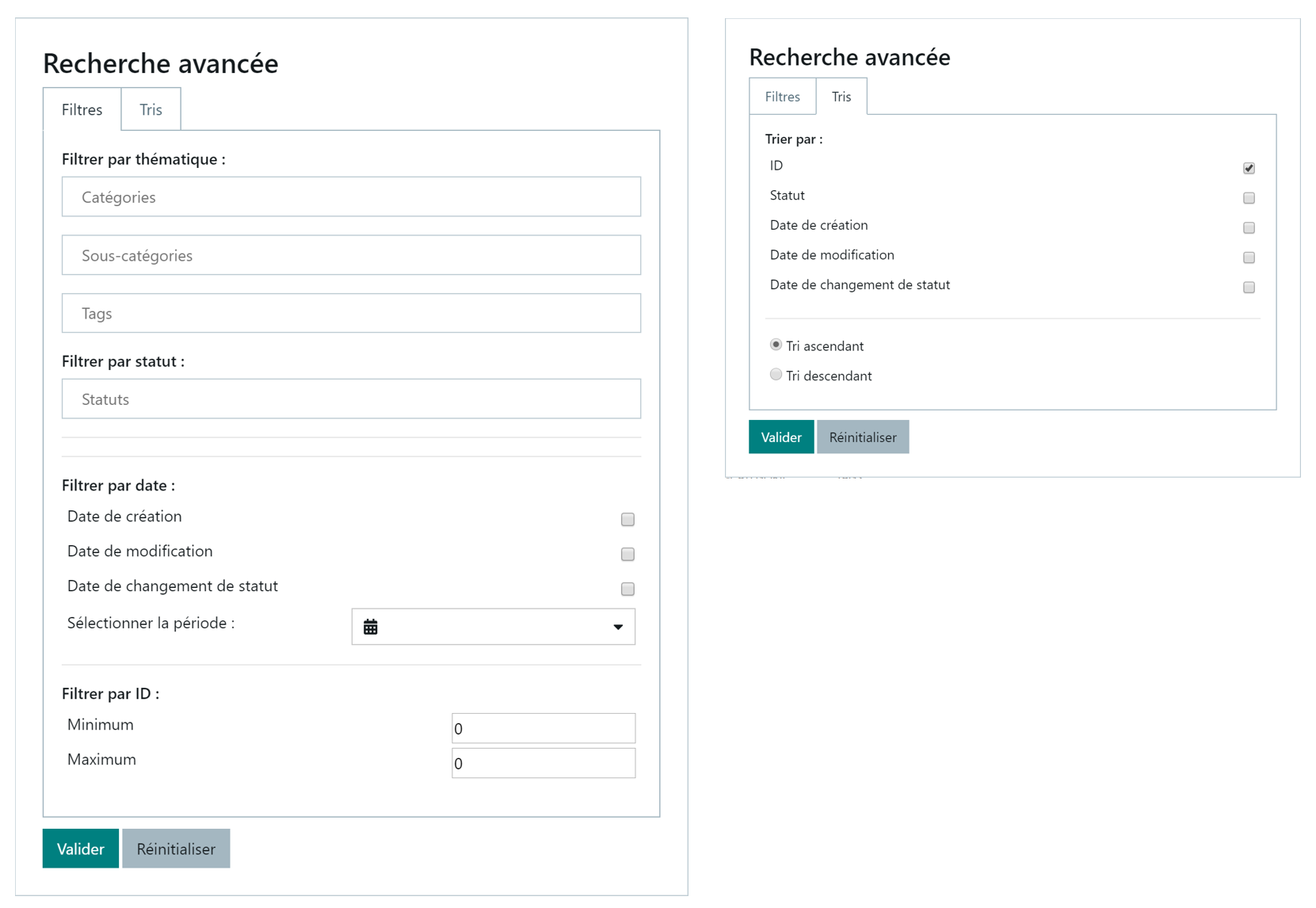
It offers a set of filters and sorts that can be combined:
- Select the desired filters and click the Validate button to refresh the knowledge entry list.
Updating a knowledge entry
Creating a knowledge entry
To create a new knowledge entry, click the button

Fill in the details and click the Save button at the bottom of the page.
Example below:
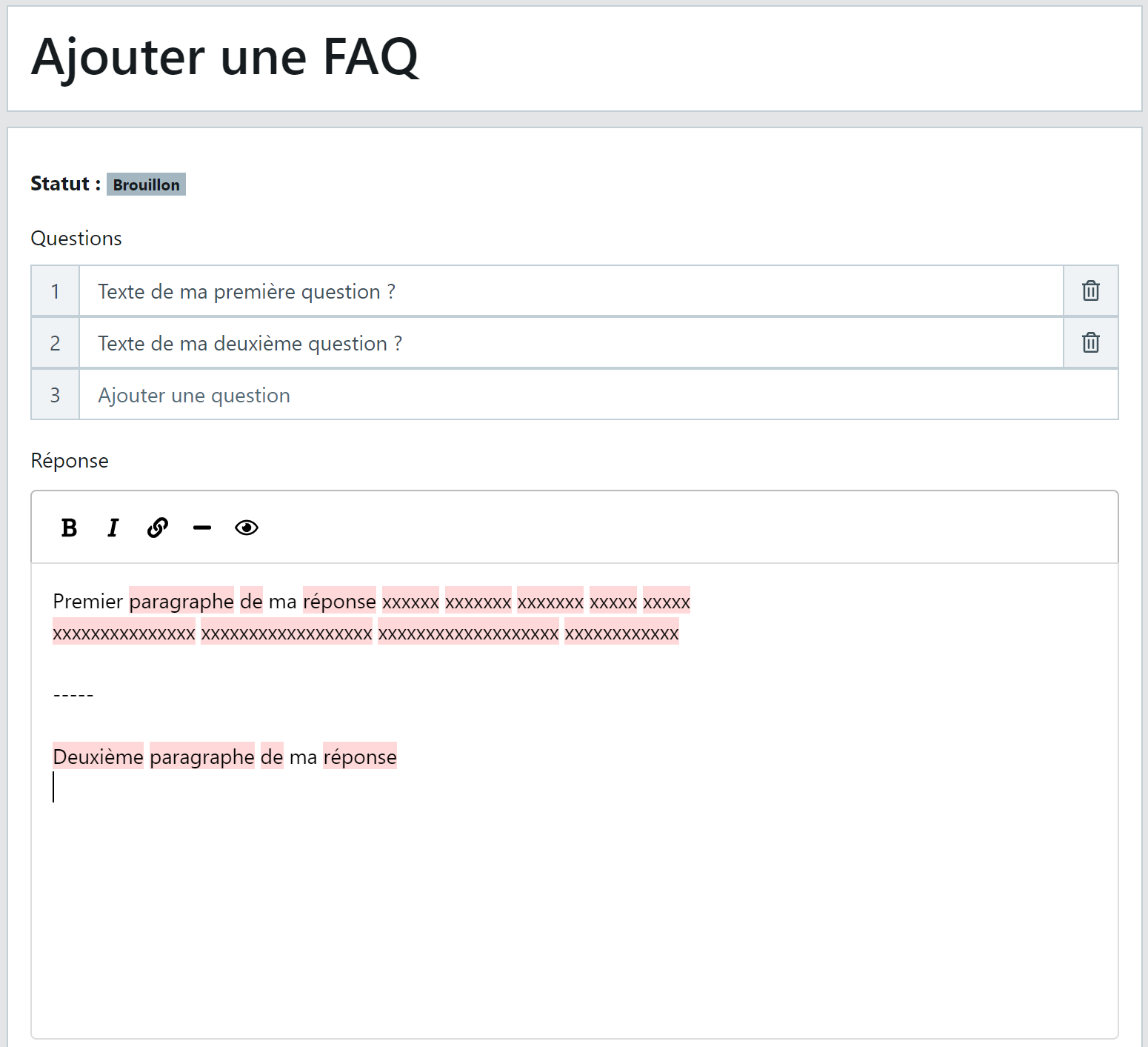
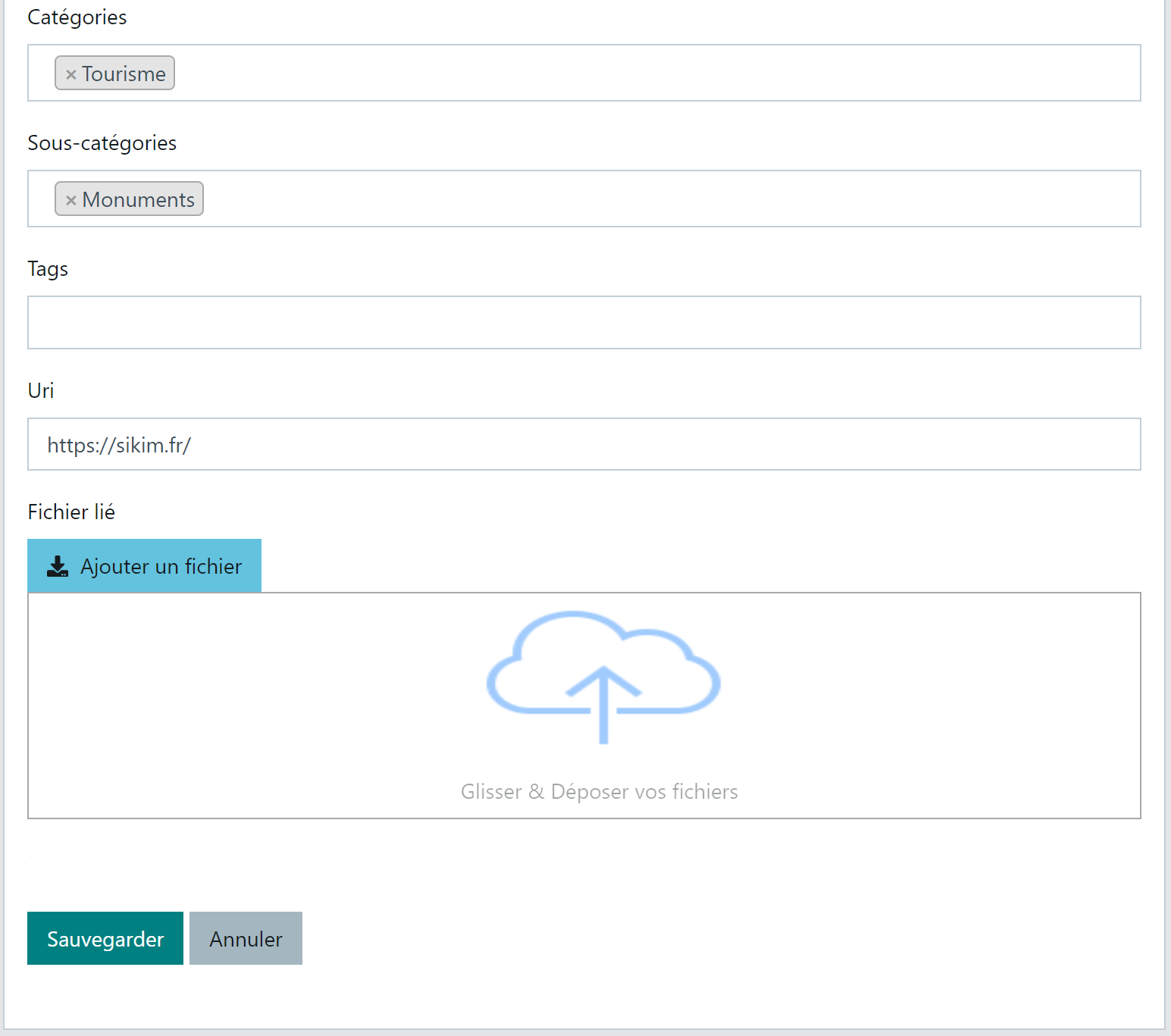
After saving, the knowledge entry list is redisplayed.
Editing a knowledge entry
To edit a knowledge entry, click the Pencil pictogram to its right:

The elements and presentation are identical to the creation form.
Deleting a knowledge entry
If you are authorised to delete knowledge entries, several modes are available:
-
Contextual Menu

-
Selection Mode
Select the relevant knowledge entries by clicking the checkbox in the left panel, as shown below:
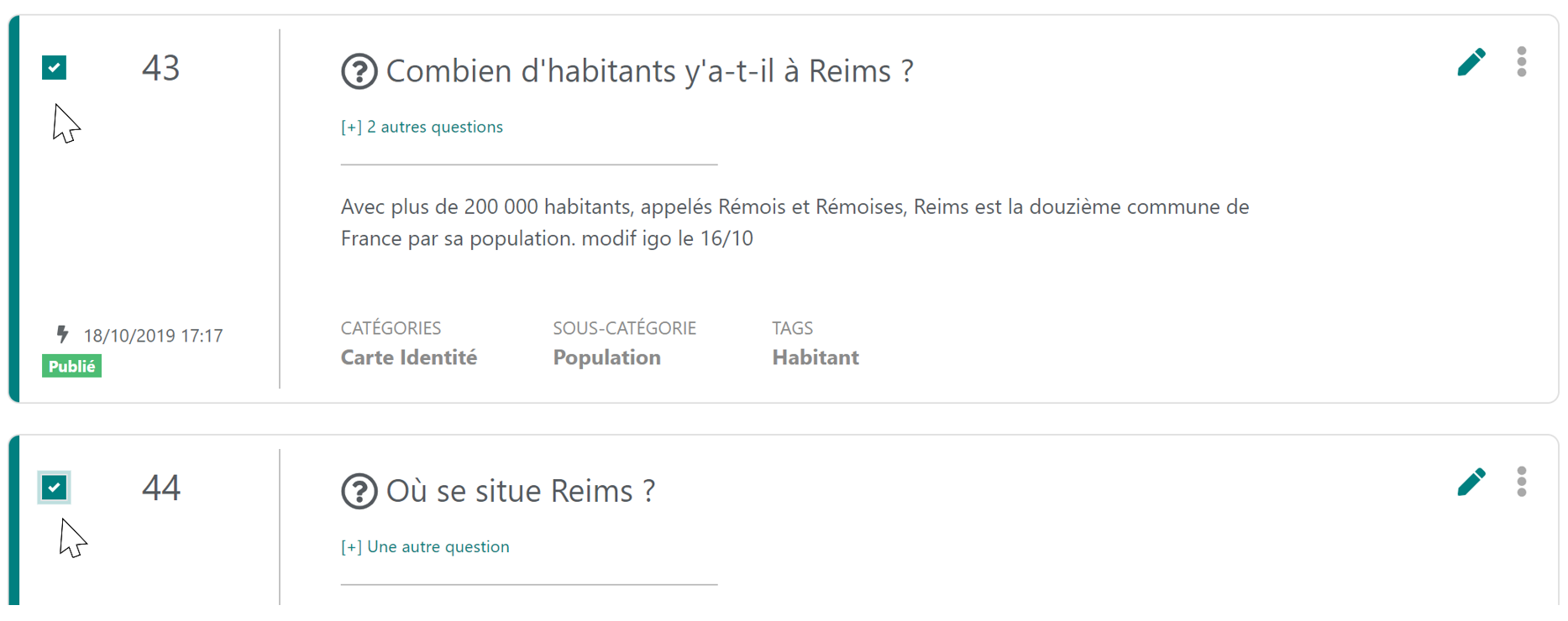 A button
  appears in the toolbar at the top of the page. Click it to launch the deletion action, which will be confirmed by a message.
-
Global deletion
The button  allows you to reset the entire question-and-answer database in a single action. This action is generally performed when you want to publish a clean question-and-answer base, exported previously and then reworked in Excel.
Note: all deletion actions are secured by a confirmation prompt.
Answer text editor
Basic formatting
For drafting answers, the back-office provides a simplified text editor:
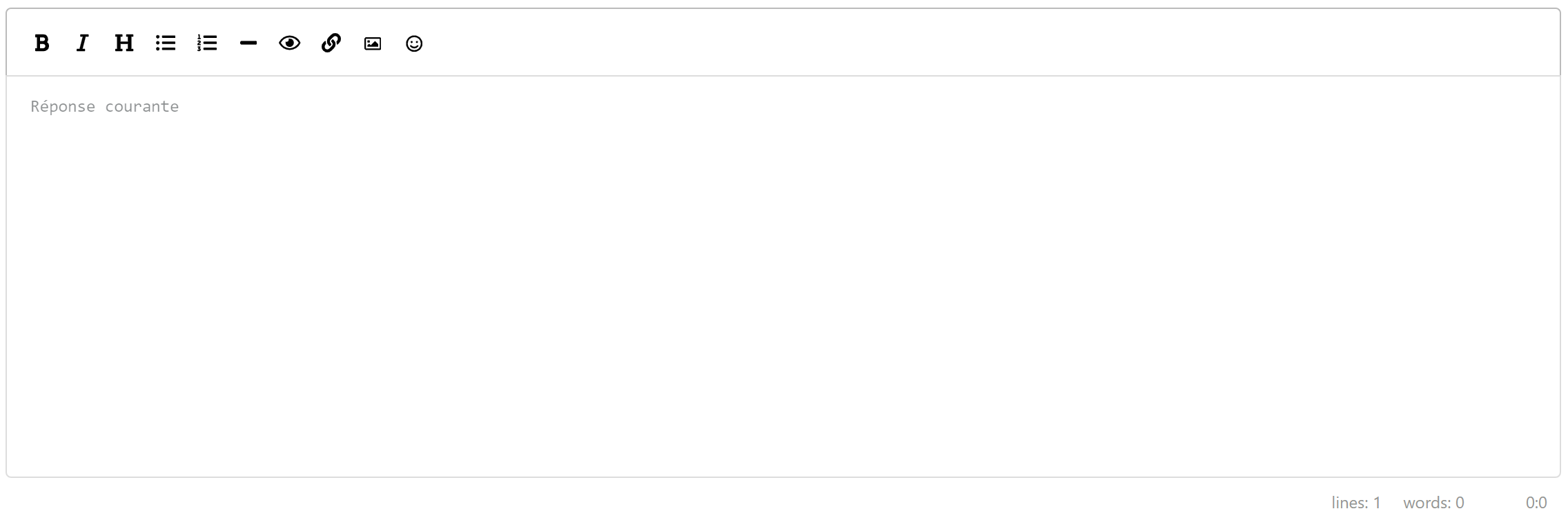
The tools available are as follows:
- B: makes the selected text bold. The text will be surrounded by ** characters and displayed in bold in the editor.
- I: makes the selected text italic. The text will be surrounded by * characters and displayed in italic in the editor.
- -: Adds a separator marker at the cursor position. Refer to the section Splitting a long answer
- Eye: provides a preview of the final text via the editor
- chain link: adds a pre-formatted link at the cursor position to be completed with the link title and URL of your web page.
Example: [ link title ](https:// page URL ) - image icon: Insert a PNG or JPEG image at the cursor position
- The image insertion is represented in the editor by the following code: ""
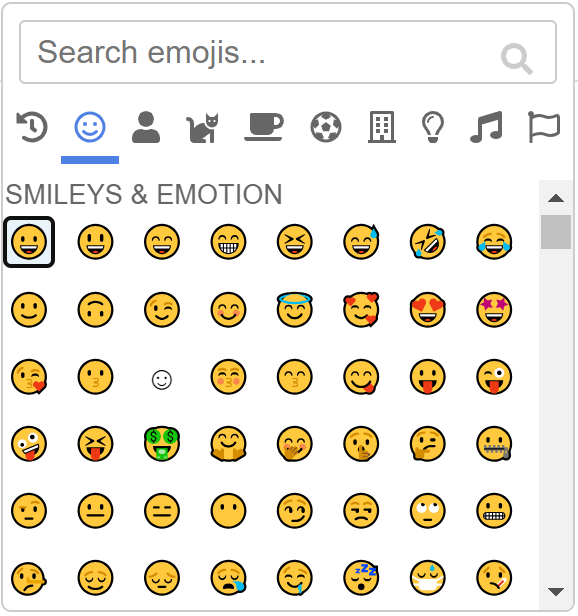
- Emoji icon: Insert an emoji via the search tool below:
Splitting a long answer
We recommend not exceeding 150 characters for an answer. If the answer cannot be shortened without losing quality, it is possible to split it into several bubbles.
To split an answer, use the separator marker, the 4th pictogram offered by the text editor:
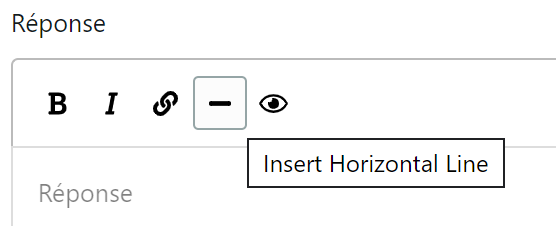
- Position the cursor at the split point and click the [-] pictogram
- A "-----" line separates the two parts of the text, preceded and followed by a blank line
- This line is continuous in "Preview" mode via the editor
You can adjust the display time between 2 messages in the "Chatbot > Settings > Smart FAQ" function, under "Answer Settings".
Example:

This time is expressed in milliseconds.
Training the digital assistant
After any action performed on the knowledge base (creation, modification, deletion, import), it is imperative to train the digital assistant in order to update its knowledge for users.
This operation is performed manually via the Train button available in the toolbar at the top of the page.
The end of processing is confirmed:
-
Either by a push notification at the bottom of the screen:
This notification is available if your site is on https and if you have allowed notifications. -
Or by a green banner at the top of the page:

This is the case if the conditions required for push notifications are not met or if your browser is not compatible with this function.
Unpublish / Publish
Retorik Studio is delivered as standard in "Automatic FAQ Publication" mode. This means that any knowledge entry created via the "New FAQ" button or imported from a file is saved with "Published" status and systematically distributed to the public after training.
It is possible to set one or more knowledge entries to "Draft" status so they are not distributed to the public during training (text or other element to be validated with another department).
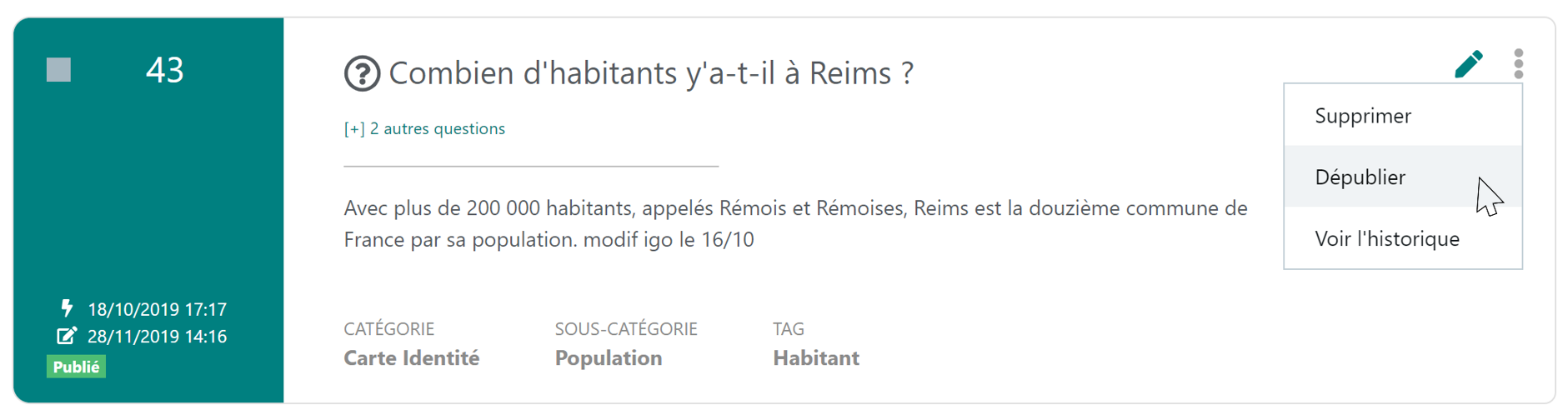
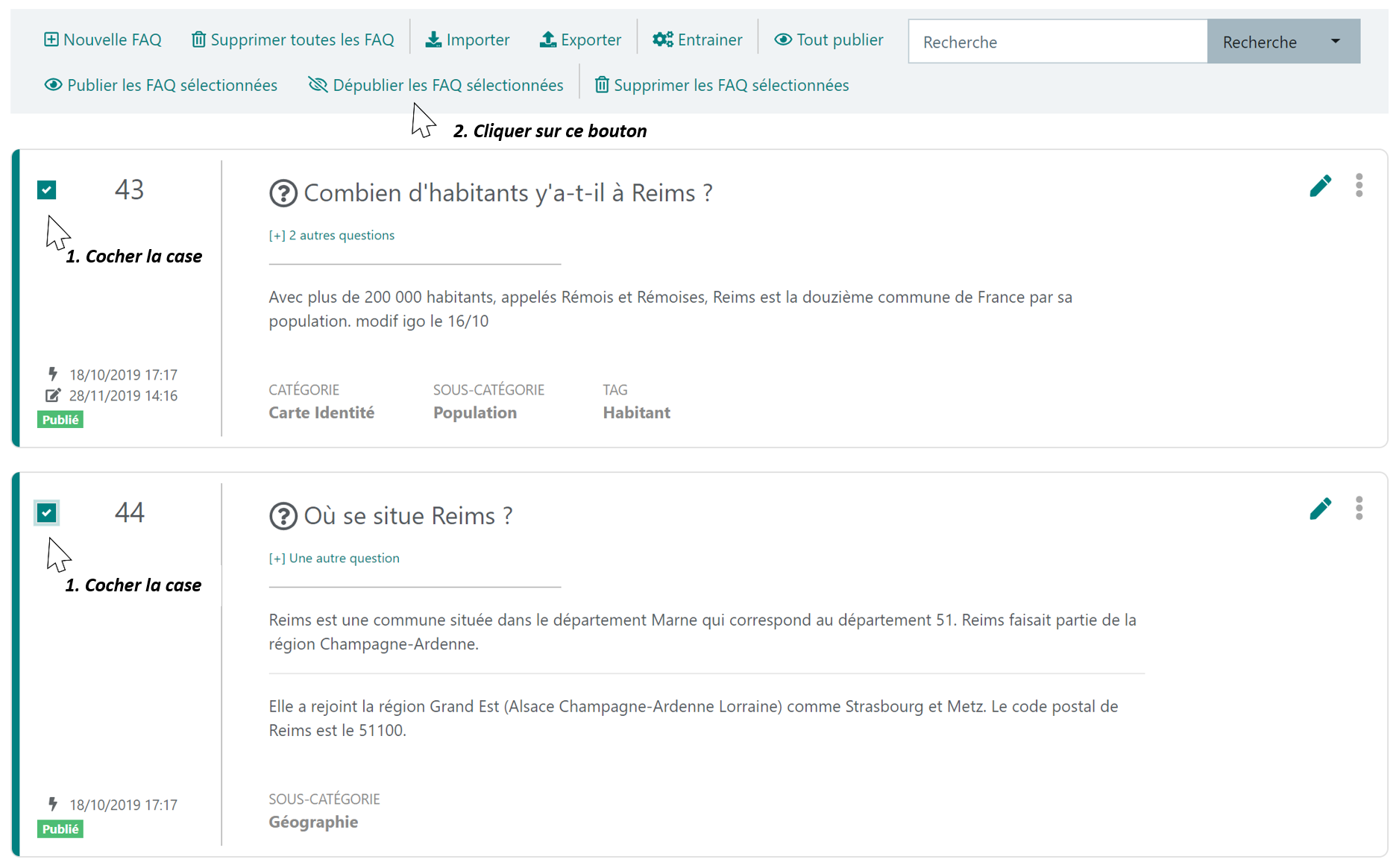
To set a knowledge entry to "Draft" mode, use the "Unpublish" function accessible:
- either from the contextual menu
- or from the toolbar at the top of the page if multiple knowledge entries are selected:
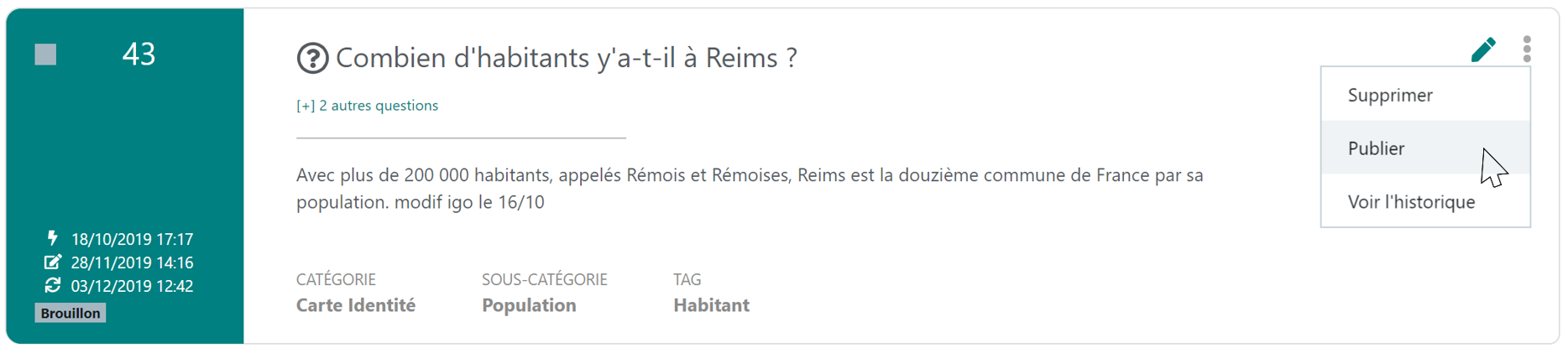
To make a Smart FAQ public, set its status back to "Published" via the "Publish" function accessible
- from the contextual menu:
- or from the toolbar at the top of the page if multiple entries are selected.
IMPORTANT: after these actions, do not forget to retrain the digital assistant so that it takes these changes into account.
Linking knowledge entries
Retorik Studio allows you to link knowledge entries together in order to push related questions to the user that may potentially interest them after the previously asked question.
Enabling the function
This function is not enabled by default upon platform installation.
To enable it:
- Go to the "Configuration > Settings > Smart FAQ" function and tick the checkbox below:

Enter a text in the message area that opens, which will introduce the suggestion of linked questions.
Our suggestion: "You may also be interested in these questions:"
2. Assign the permission Modify FAQs linked to a Smart FAQ to the role of users authorised to use this function.
Adding a link between questions
Enabling the "Link Smart FAQs" function makes the following button visible on the "Add a knowledge entry" or "Edit knowledge entry" page:

It opens a knowledge entry search popup:
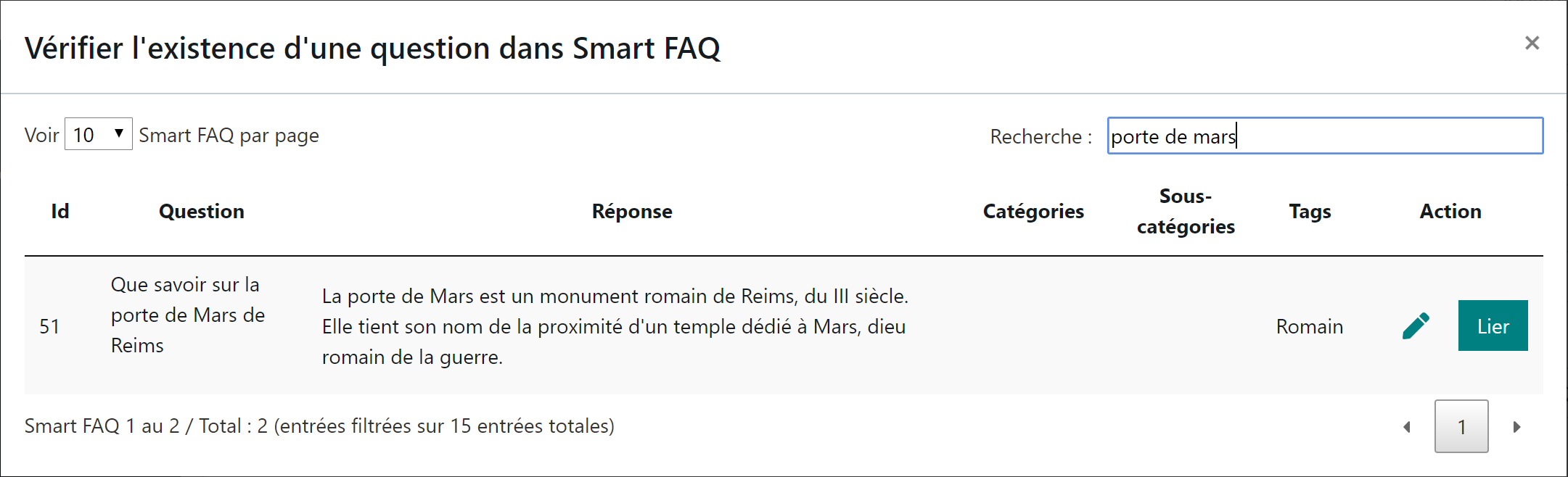
- Enter your filter criteria in the Search area then press Enter to confirm
- Click the Link button to the right of the selected knowledge entry
- Repeat for each question to be linked
- Then close the window using the cross at the top right.
Knowledge entries linked to the entry you are adding or editing are inserted on the page as a list:
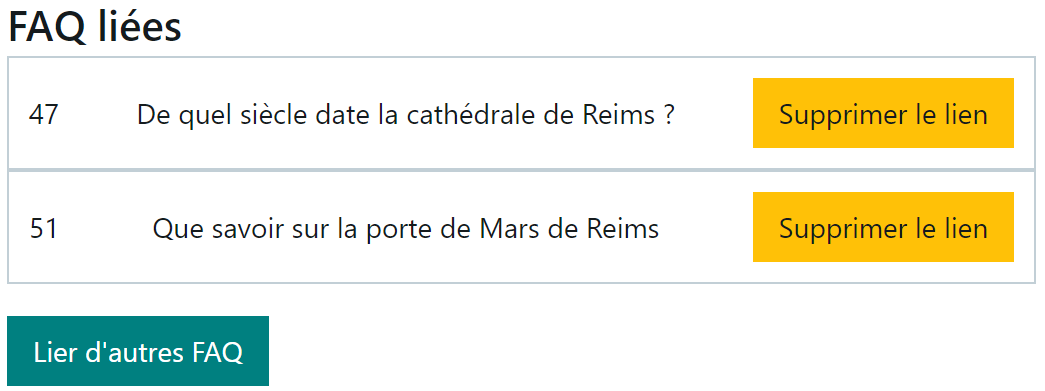
You can extend this list using the Link other FAQs button, or remove an incorrectly linked Smart FAQ using the Remove link button on the far right of the linked FAQ.
NOTE
- Do not forget to save your knowledge entry using the Save button at the very bottom of the page.
- Adding linked knowledge entries requires a new training of the digital assistant.
Import/Export functions
General information
These two functions are provided to facilitate the setup of a knowledge base during the design phase of your digital assistant project. The creation of question-and-answer entries can indeed be carried out by various collaborators in Excel — a familiar and easy-to-use tool — then consolidated in a single file to be imported, ready to begin the testing and learning phase of the digital assistant.
Note: not all elements of a knowledge entry are handled during import:
- Linked files
- Linked knowledge entries
These elements must be processed via the Retorik Studio Knowledge Base function.
We therefore recommend, when Excel files are used during the project phase, managing these 2 elements once you have stabilised your base and it will evolve only marginally on existing FAQs, otherwise you will lose all these links with each export/import operation.
We do not plan to make short-term adaptations to these functions. It is therefore advisable, during the operational phase, to carry out knowledge updates via the back-office functions, in order to maintain the completeness of your knowledge entries as well as their text formatting, which can also be altered during a reimport (e.g.: insertion of emojis in the answer text).
Importing knowledge entries
-
Designing your file
To initialise your question-and-answer base, you can prepare an Excel file and import it. The file must contain the following columns:
| CATEGORY | SUB-CATEGORY | QUESTIONS | ANSWERS | TAGS | LINKS | SPECIFIC COLUMN (*) |
|---|---|---|---|---|---|---|
| (*): Column specific to your project. For any questions, contact DAVI. |
IMPORTANT Linked files and linked FAQs are not processed by the import programme. These elements must be uploaded via the back-office for each relevant Smart FAQ. If you reset your entire knowledge base (Delete all knowledge entries then Import a complete file) you will lose linked files and linked FAQs.
Filling rules:
- The 1st row of the file must contain the column headers, question-and-answer entries must start from the second row,
- Column names must be respected,
- The order of columns may differ from the template,
- If you insert working columns between these columns or at the end of the file, they will not be taken into account during import.
- Only the two "QUESTIONS" and "ANSWERS" columns are mandatory for a knowledge entry. The others can be empty.
- For category, sub-category and tags:
- Spaces and hyphens (-) are allowed,
- Use the same spelling for the same element,
- Limit to 2 or 3 tags maximum
- Multiple questions can lead to the same answer:
- In this case, fill in a different row for each identical Question-Answer pair (see the example Excel file in the "Import" section below)
The Excel file must be saved in CSV format (separator: semicolon) to be imported into the back-office.
-
Importing
To import a CSV file of question-and-answer entries, click the Import button on the toolbar. A file selection window, standard to your PC operating system, is displayed:
-
Select the CSV file
-
Click Open
-
Processing is in progress, the web tab shows a spinner
-
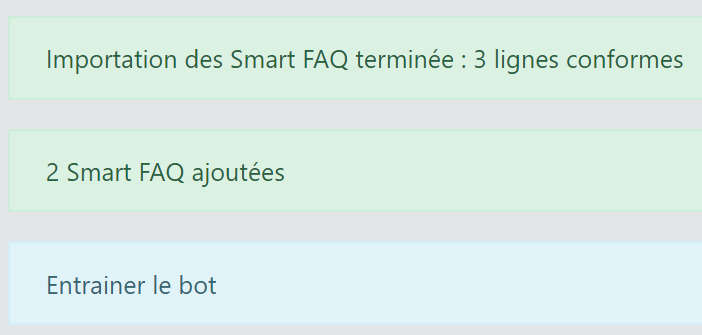
Processing is complete when the web page refreshes and displays the import summary:
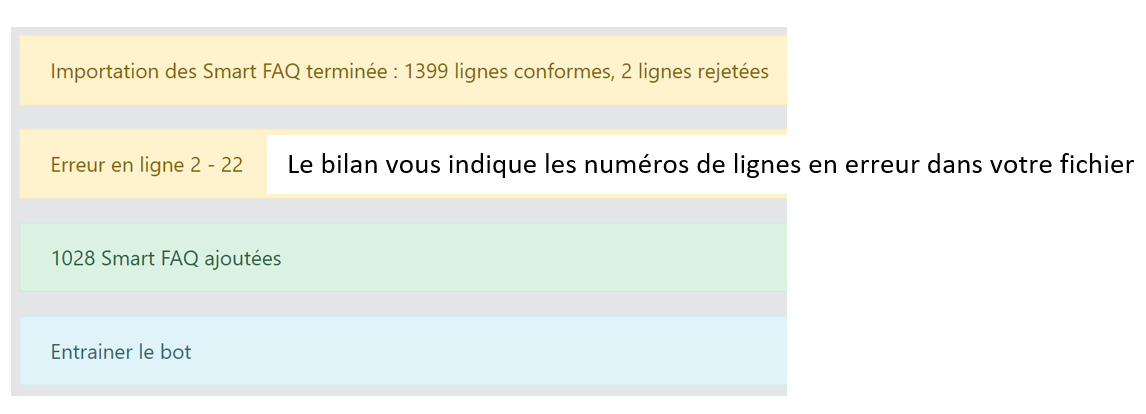
- If the file contains errors, the line numbers are flagged. Note: these are not imported. Correct the file and restart the import.
-
IMPORTANT: after this processing, do not forget to retrain the digital assistant so that it takes these new data into account.
-
The number of Smart FAQs added is less than the number of rows in the file
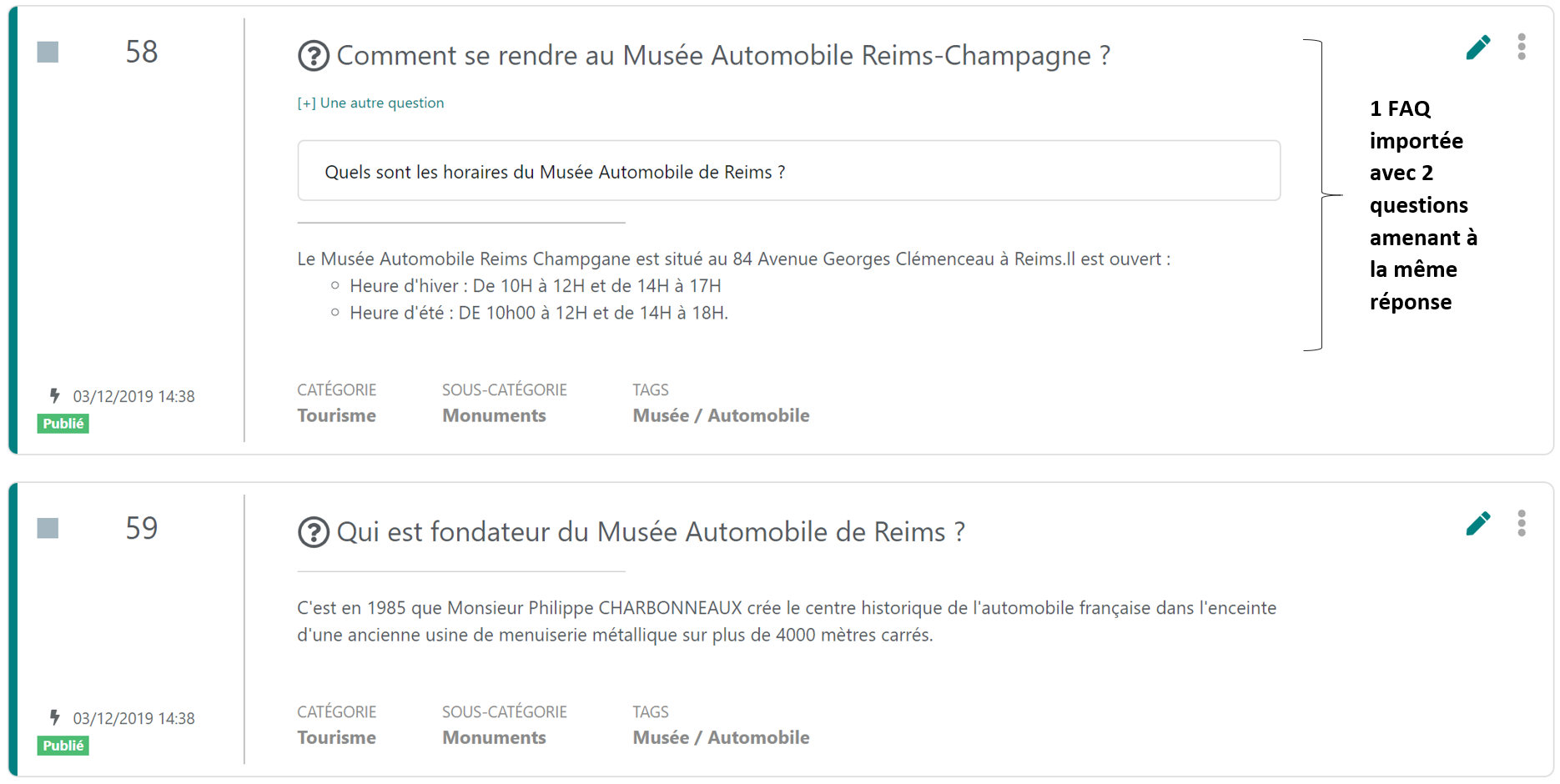
The import process groups into a single knowledge entry all questions that have the same answer, category, sub-category, tags and link. This is why the import summary may show a number of FAQs created that is lower than the number of valid rows in the file.
Example:
Excel file
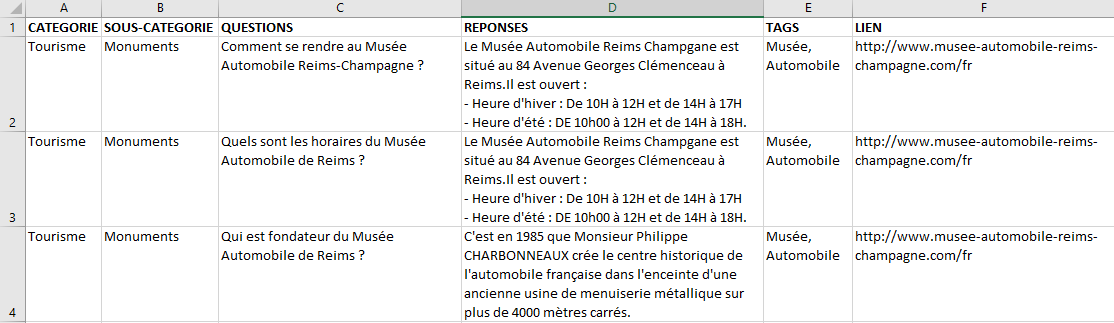
Smart FAQ after import
Exporting question-and-answer entries
The Knowledge Base function allows you to export the entire question-and-answer base in order to rework it in Excel for greater flexibility with filters, or to distribute it among departments for an answer review.
Click the Export button on the toolbar at the top of the page.
You obtain a file in CSV format (separator: semicolon) saved in your default download folder or in the folder you specified during the download.
NOTE: The exported file contains a "NUMBER" column that is not reused when reimporting that same file. This is why before reimporting a full export of your knowledge base, you must first delete all FAQs in order to avoid unwanted FAQ merges, as the system merges all questions with the same answer into the same FAQ. An exported answer that has been modified even by a single word or comma will generate duplicate FAQs during reimport if the FAQ was not cleared beforehand.
Toolbox
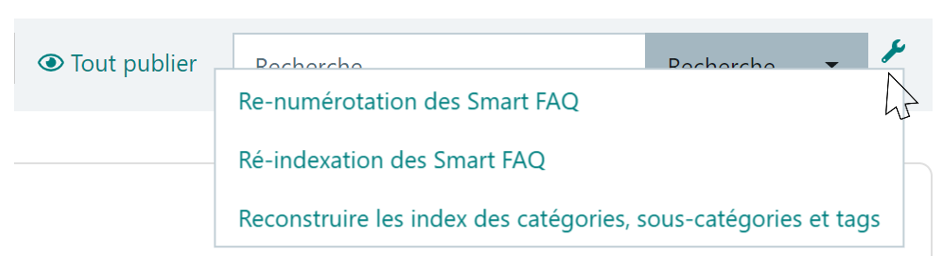
Depending on your authorisations, extended functions may be available in a "Key" menu to the right of the Search button:
Question renumbering
With each creation, whether manual or by file import, the system increments the FAQ number by 1.
After deletion or import operations on your question-and-answer entries, this counter no longer reflects the exact number of existing FAQs in the database.
Use the Smart FAQ Renumbering function to restore a continuous numbering of your FAQs.
Re-indexing the knowledge base
The knowledge base Search function uses a document indexing engine. An FAQ is treated as a document.
Mass deletion and reimport operations can impair this Search function. It is recommended to re-index the knowledge base when you delete all FAQs and reimport a complete base.
Knowledge base re-indexing can also be launched on an ad hoc basis if anomalies are detected in the search.
To re-index the knowledge base, use the Smart FAQ Re-indexing function.
If the problem persists, contact DAVI.
Rebuilding category, sub-category and tag indexes
If you notice themes still present in the "Categories", "Sub-category" and "Tags" drop-down lists even though they are no longer used in the knowledge base following a clean-up, you can update these lists using the Rebuild category, sub-category and tag indexes function.
If the problem persists, contact DAVI.