Re-engaging the user if there is no interaction
The "Follow-ups" skill allows you to re-engage the user with a message if they do not interact with the digital assistant for a defined period.
Follow-up triggers
It is possible to define 3 triggers:
- After the welcome message if no question is asked to the digital assistant, or no action is performed on the displayed media cards or menu features
- After the misunderstanding message if the user does not react to the digital assistant's message, which generally invites them to rephrase their question, or no other action.
- After any last response from the digital assistant, if no user action with the digital agent is detected.
These different triggers can be combined to apply a different text and/or a different delay to several events, or used alone to manage only a specific event.
Enabling the feature
Go to the "Configuration > Features" menu and Enable the Davi.Retorik.Studio.Bot.BringupMessages module.
The "Follow-ups" function appears in the "Chatbot" menu.
Managing a follow-up
Adding a follow-up
To create a follow-up, 3 pieces of information are required:
- The trigger:
- Enter "Davi.Welcome" to define a follow-up after the welcome message.
- Enter "Davi.NotUnderstood" to define a follow-up after the misunderstanding message.
- Leave blank to re-engage the user after each digital assistant response.
- The message to send
- The elapsed delay before sending the follow-up (in seconds).
- The timer only starts from the end of the welcome message (vocal message duration), once the digital assistant returns to listening position.
- The timer only starts from the end of the welcome message (vocal message duration), once the digital assistant returns to listening position.
Save the follow-up by clicking the "Add" button.
Editing a follow-up
Editing a follow-up is not available. You must delete it and recreate one with new text and delay.
If a follow-up has already been created, the "Follow-up Settings" page displays the list of existing follow-ups as shown below:
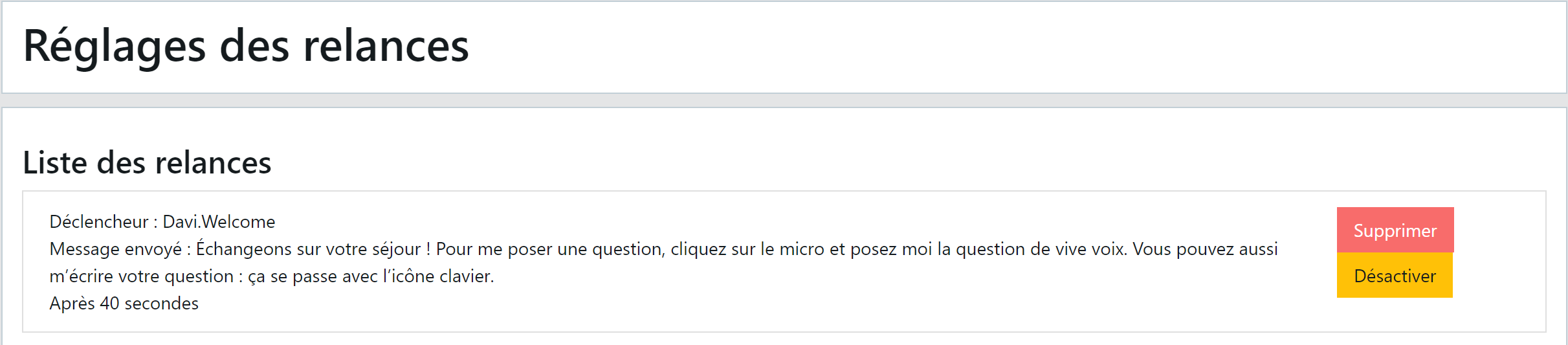
Deleting a follow-up
Click the "Delete" button to the right of the follow-up you wish to permanently delete.
Note: this action is performed without a confirmation prompt.
It immediately disappears from the follow-up list.
Disabling a follow-up
Click the "Disable" button to the right of the follow-up you wish to temporarily stop triggering.
This action is performed without a confirmation prompt.
The follow-up remains displayed in the list with a "Delete" button and a "Reactivate" button that you can click at any time.